GRAPHIC OPTIMIZER FOR DELTA FORCE
OFFICIAL USER GUIDE · v0.23.0.37

The FrameBar guide

  • For version 0.23.0.37
  • Windows 10 / 11 · Intel/AMD x64
  • Features · Setup · FAQs

Website and client language

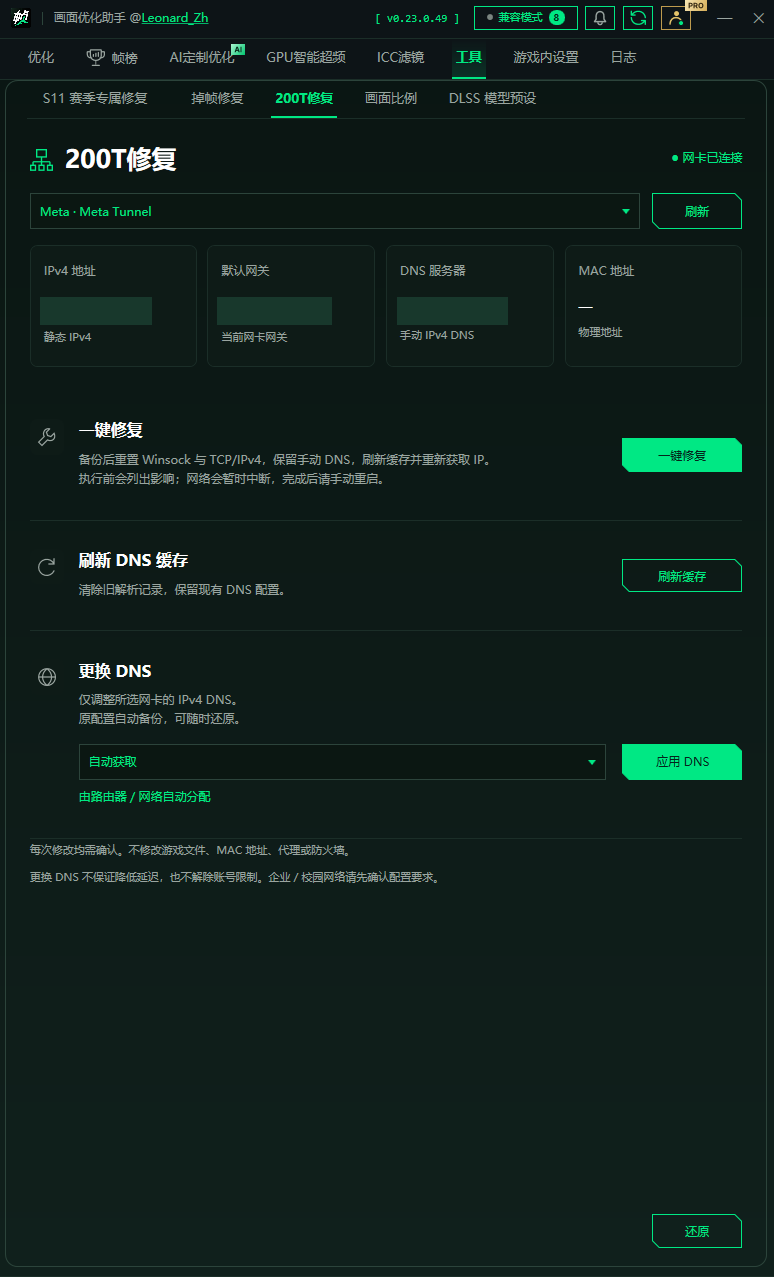
The website header retains the original logo, tagline and navigation. Use en / 中文 to switch the website language only—not the client, installer version, permissions or update policy. Screenshots show the original Chinese interface. An English website does not establish support for additional game regions or editions.

The local bilingual v37 candidate adds an English / Simplified Chinese button in the client header. Save your choice, finish any current operation, then close and reopen the app. The next launch uses the selected language. To return to Chinese, use the same steps. No operation is interrupted and no restart is automatic. This changes presentation only, not optimization items, account data, diagnostic evidence, backups, or version support.

The bilingual client is not yet released; existing official v37 downloads are unchanged. Windows installer / UAC buttons follow your Windows language. Raw diagnostic logs, user names, filenames, existing screenshots, and third-party pages retain their original language.

In the local English candidate, Recommended settings provides guidance, not direct control of in-game settings. Performance report shows recorded game performance. Smooth means smooth overall; Below target means FPS is below target, with stability explained underneath. Board, Driver and Preset label the motherboard, driver version and optimization preset. Loading / map stutter covers loading and map transitions. Skip this version dismisses reminders for that optional update, not future versions. These short labels fit existing controls without changing their behavior. L. Zh is a compact credit for Leonard_Zh; hover to see the full name, while the full version stays visible. Hover over backup folder to see its full path, or click it (Enter/Space on a keyboard) to open the path hint. Browse… selects the game executable. Send diagnostics… opens review and confirmation; opening it uploads nothing. Sign out leaves the FrameBar account; Sign out of Windows ends the Windows session. Existing narrow-window action rows and stacked account buttons are retained. Restore returns settings to their saved previous values, not necessarily Windows defaults.

Find these controls in the client
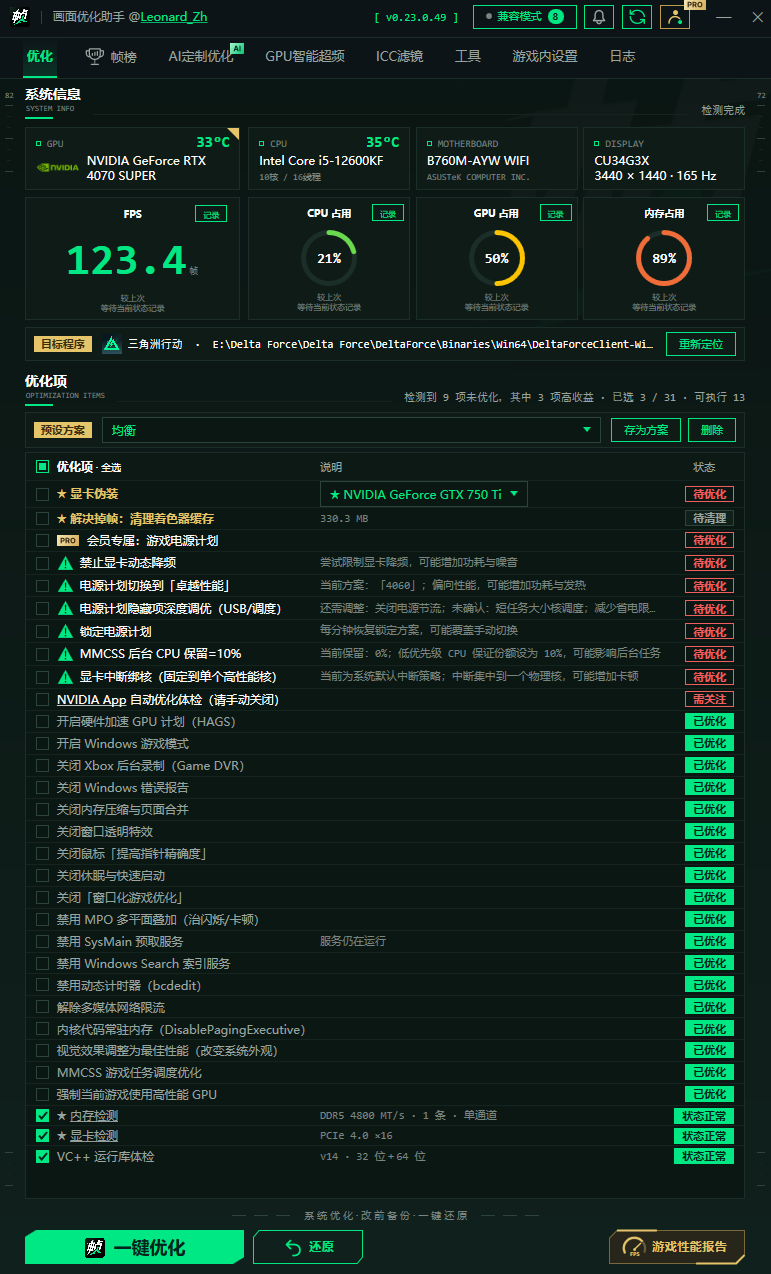
Optimize
优化
Apply optimizations
执行优化
Restore Settings / Restore
还原设置 / 还原
Restore selected / Restore all
复原所选项目 / 全部复原
Compatibility Mode
兼容模式
Stutter Troubleshooting
掉帧修复
Logs / Send diagnostics…
运行日志 / 上传完整诊断
Performance / Balanced / Stability
性能优先 / 均衡 / 稳定
Gaming Café mode / Personal PC mode
网吧模式 / 个人电脑模式

Describe the issue collects your feedback. Next: Review report opens the review step; Send report submits it only after you confirm the contents. Per-setting restore restores individual settings without overwriting later changes. Both built-in and saved settings use the term preset; your own saved settings are a custom preset. FPS target met reports target attainment, not a promised improvement. Capacity unavailable means memory usage in GB is unavailable. A repair result saying could not be verified is unconfirmed, not proof of failure. If asked to reopen using the launcher, close the app and double-click the FrameBar launcher normally—not Run as administrator. The normal launch process still requests UAC approval when needed.

READ BEFORE USE

Before you start

Tuning is not a formula for guaranteed FPS gains. Understand what each setting changes and how to undo it before choosing what to apply.

An unofficial tool operated by Zhengyuantai; no fixed FPS gain is promised

FrameBar is operated by Zhengyuantai Enterprise Services, Daxin Town, Zhangjiagang (individually owned business) and is not affiliated with Tencent or the official Delta Force team. The software changes Windows registry entries, power plans, system services, boot configuration and GPU driver settings. The official website is https://fpsbang.com/.

The business model includes some free features, annual memberships and individually priced add-on services. There is currently no automatic renewal. Renewals require a new, active order; no payment is taken on expiry. Unavailable items are not represented as launched. Existing lawful free or lifetime entitlements are handled according to the original promises. Features, prices, device limits and terms are clearly displayed before purchase.

Unless the law or purchase page provides otherwise, no additional refund promise is made solely for changing your mind or not using the service. Statutory cancellation/refund rights and remedies for non-delivery, duplicate charges, breach and return of balances are preserved. Activating an annual membership does not mean a full year's obligations have been performed. The absence of a self-service button does not prevent manual handling. Restoring prior changes and accessing backups and necessary credentials do not require renewal.

Support, complaints and privacy requests: fpsbang@outlook.com; postal contact: Zhengyuantai, No. 10, Group 28, Changfeng Village, Daxin Town, Zhangjiagang, Jiangsu, China. Outlook.com email may be processed outside China. Send an issue summary first, not full diagnostics, identity documents, passwords, verification codes, keys or payment evidence. This notice does not replace the operator's cross-border data obligations.

Applications for software and logo copyright registration and name/logo trademark registration are in progress; approval or safety certification is not claimed. Responsibility is allocated according to actual causation, fault and law. A user's checkbox does not transfer all liability for device, data or account losses to the user.

Version boundaries: These instructions use v0.23.0.37 as their baseline. Legal package v2.5 ships with this version; distribution does not replace required notice or user confirmation. The four data purposes retain v34's default-on configuration and preserve prior explicit opt-outs. Independent optional switches and complete consent receipts are not yet implemented; a default setting is not valid separate consent. See Before you use FrameBar: risks and limitations.

Restorable settings save their original state before the first write. Recovery is not guaranteed in every situation: system permissions, damaged backups, changes in Windows state or later writes by other software can prevent it.

Results depend on your PC, Windows version, GPU driver and game version. You may see an improvement or no clear change. Some settings may cause frame drops, stutter, visual problems, higher power use or higher temperatures.

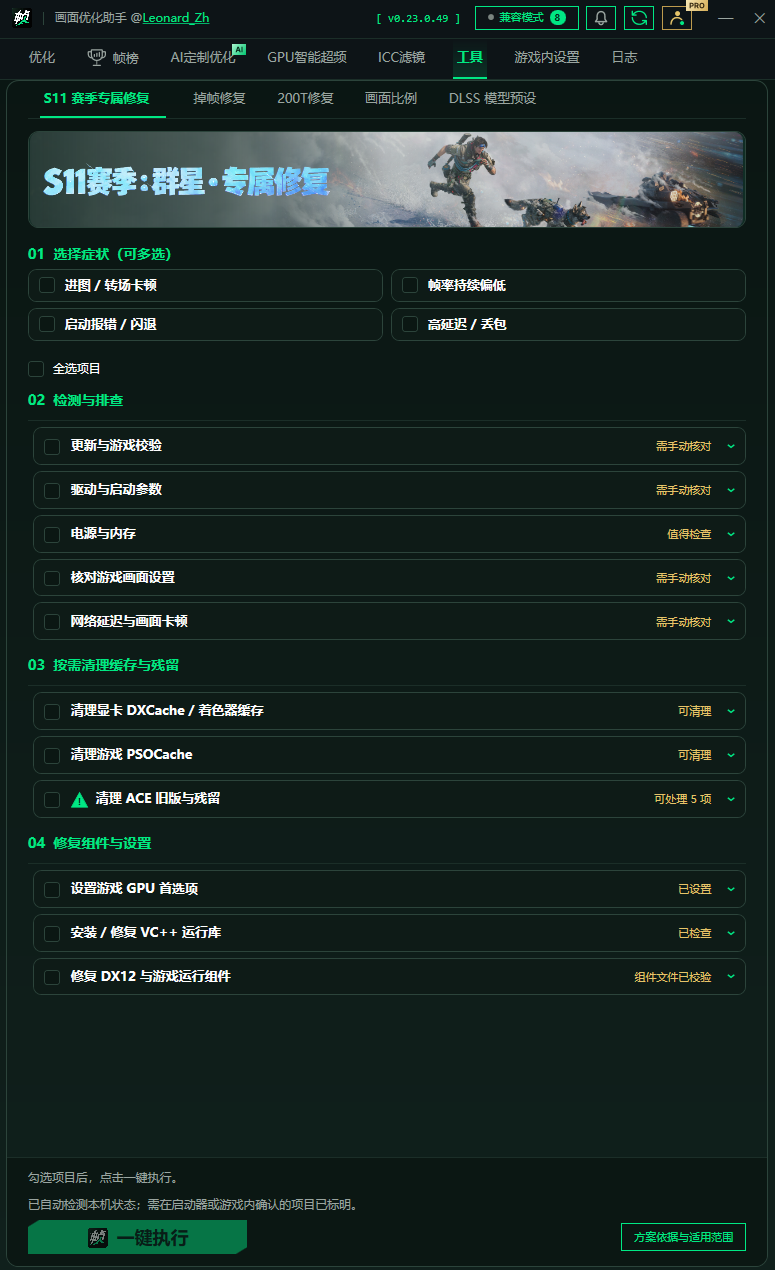
Season Repair may clear or restore PSOCache, change rendering settings or repair game DX12 components for items confirmed by the user. It does not inject into the game process or read/write game memory. ACE-related actions may back up configuration and modify service records according to the confirmed plan, after prerequisite checks.

Before applying changes

  • Record your FPS, 1% Low and overall experience. Plan to compare the same map, graphics settings and route.
  • Read every setting's description. Leave it unchecked if you are unsure.
  • Back up important data and save your work before applying system-level changes.

After applying changes

  • If problems appear, restore the original settings first, restart the PC and retest.
  • Do not delete the backup folder.
  • Follow restart prompts after applying or restoring any setting marked Restart required.
DEVICE & SESSION SUPPORT

Supported devices

Supports gaming-café PCs, laptops and desktops. Available settings depend on permissions, hardware and the detected game path.

Gaming-café PCs

If UAC is disabled, the built-in Administrator account is in use or your administrator setup is unusual, Gaming Café mode opens a compatible session without changing UAC or requiring a restart. Core tuning and restore remain available.

Laptops

Detects laptop form factors, hybrid graphics and the primary GPU. Defaults are more conservative for settings affecting battery life, hibernation, heat and power—for example, disabling hibernation is not selected by default.

Desktops

Available settings account for CPU architecture, primary GPU, memory and power plan. Desktop defaults can be more performance-focused, but Balanced is still the recommended starting point.

Compatible-session limits: Gaming Café mode, or launching directly with Run as administrator, disables per-user shader-cache clearing, detection of the original user's GPU software and outbound links from the app. High-performance GPU selection, Visual C++ checks, core tuning and restore remain available. On a normal personal PC, double-click the launcher and approve one UAC prompt at the start of the session.
QUICK START

Quick start

From downloading to applying changes, retesting, restoring and sending diagnostics.

  1. Download from an official source and install

    Start with the official website and its explicitly listed alternative download links. Check the version, hash and actual publisher information. Stop if SmartScreen warns or security software quarantines a file; review the alert with the operator or security-software vendor. Until verified, do not disable protection, restore unknown files or mark them trusted. You may cancel installation.

  2. Launch and let detection finish

    Read and accept the usage notice, then choose Personal PC or Gaming Café mode for your device. Wait for checks of the CPU, primary GPU, motherboard, memory, display, game path and current tweak status to finish.

  3. Choose a preset or individual settings

    Balanced is selected after detection. You can choose Performance or Stability, or select settings individually and save a custom preset. Performance includes more settings with side effects or restart requirements, so read their descriptions first.

  4. Apply changes and read the confirmations

    Choose Apply optimizations and review the selected items. Power settings, mouse input and GPU model spoofing have risk prompts, with a separate second confirmation for spoofing. Do not click repeatedly or force-close the app while changes are running.

  5. Restart when prompted

    Save your work and restart Windows when required. Open FrameBar again afterward and let it recheck the current state.

  6. Keep FrameBar running while you play

    Leave FrameBar open while playing Delta Force; it can run minimized. Once the game is detected, the app shows FPS and hardware status and records the full session. Review the performance report after exiting the game.

  7. Use the stutter troubleshooting workflow first

    For frame drops or periodic long freezes, open Stutter Troubleshooting. Work through shader-cache clearing, high-performance GPU selection and Visual C++ checks. The first one or two matches after clearing caches may stutter more while shaders recompile; wait for rebuilding before judging the result.

  8. Restore if results get worse, then share diagnostics if needed

    If there is no improvement, or you experience a black screen, flicker, game startup failure, unusual mouse feel, or increased power use or temperature, stop applying changes. If the desktop remains safely accessible, restore the related items in Restore Settings and restart as instructed. Otherwise follow the offline recovery guidance below. Before sending diagnostics, review what will be uploaded, then confirm; share the retrieval code privately with verified support only.

For a useful comparison: Keep the game version, map, graphics settings, resolution, FPS cap and route the same. Wait until shader caches have settled before comparing average FPS, 1% Low and how smooth the game feels. Change only a few settings at a time so the cause is easier to identify.
CURRENT FEATURES

The eight current feature modules

These modules reflect the current v0.23.0.37 interface. Some features may be limited or hidden, depending on your PC.

01
LIVE PERFORMANCE

Live performance dashboard

Check game detection, hardware usage and temperatures to decide what to tune or troubleshoot.

What it shows

  • The home view identifies the primary GPU, CPU, motherboard and display. Unavailable readings are clearly labeled.
  • Live FPS for the target game, plus CPU, GPU and memory usage.
  • CPU/GPU temperatures, GPU power and other readings where supported.
  • Display identification, display resolution and refresh rate.
  • Local history for FPS, CPU, GPU and memory.

How to use it

Keep the app running in the background and enter the game. Display and recording start when the target process is detected. Select a metric to see recent valid readings, changes and trends.

Limits

Sensor access depends on hardware, drivers and permissions. Without valid game frames, FPS stays in a waiting state; missing data is not replaced with zero.

02
SYSTEM OPTIMIZATION

Windows tuning

Check, apply and recheck settings spread across Windows, power plans, graphics preferences and services, with a result for every item.

Coverage

  • Power plans, hidden power settings, hybrid-core scheduling and power throttling.
  • HAGS, MPO, MMCSS, network throttling and high-performance GPU selection.
  • Background recording, services, desktop effects, input and timers.
  • Performance, Balanced and Stability presets, plus custom presets.

What happens when you apply

The app reads the current state and eligibility first, then selects settings according to your preset. Results distinguish success, skipped items, failures, findings and restart requirements. Settings already in the target state are not rewritten.

Limits

Foreground scheduling priority, fixed virtual memory, disabling fullscreen optimizations and High game CPU/I/O priority are retired and available only for legacy restore. NVIDIA Profile Inspector import is also disabled.

03
GAME COMPATIBILITY

Game compatibility mode

Defaults on when another supported game is first found, unless you have already made a choice. The game does not need to be running. By default, it restores the real GPU name while leaving other tweaks active. Your manual choice is preserved.

What it does

  • Scans supported local games and whether they are running.
  • Use Compatibility Mode at the top to review its state, turn it off or open Advanced settings.
  • Skips selected conflicting tweaks while compatibility mode is enabled.
  • When switched off, reapplies only the settings actually paused by that transition.

Why use it

Reduce the effect of Delta Force-specific settings on other games, with visible, reviewable restore, skip and reapply steps when switching games.

Limits

Only changes recorded by FrameBar and classified as potentially conflicting are handled. Incomplete old GPU state is not guessed or replayed. After an interrupted switch, only verified state is recovered; mismatched GPU names and device identities are rejected. v0.23.0.33 fixed PnP recovery issues on some PCs. If turning compatibility mode off reapplies a GPU model, restart Windows before opening the game. No files or processes in other games are modified or injected into.

04
FRAME-DROP DIAGNOSTICS

Stutter troubleshooting

GPU-specific steps for the primary NVIDIA, AMD or Intel adapter, with three direct actions.

Available actions

  • Clear DirectX, NVIDIA, AMD and Intel shader caches.
  • Assign the high-performance GPU to the current Delta Force executable.
  • Check Visual C++ 2015–2022 (v14) runtimes.
  • Open instructions matched to the GPU vendor and local environment.

Suggested order

Fully close the game and launcher before clearing caches. Reopen the game and allow time for caches to warm up. Then verify game files and the high-performance GPU setting, and finally follow the GPU guidance to check the driver control panel.

Limits

Clearing caches is not a guaranteed stutter fix. Entering a scene for the first time may temporarily stutter more while shaders recompile. Hardware bottlenecks, network issues and game-version problems need separate investigation.

05
READ-ONLY CHECK

Read-only hardware checks

Read PCIe, memory and runtime status to distinguish software settings from hardware or BIOS conditions that need manual investigation.

Checks included

  • Current PCIe link, reported maximum and data source.
  • Recheck the PCIe link under load for 10 seconds to distinguish idle power saving from faults. No system settings are changed.
  • Actual/rated memory speed and XMP, A-XMP, EXPO or DOCP guidance.
  • Visual C++ v14 x64/x86 runtime status.

What it does not do

Checks do not automatically run stress tests, flash the BIOS, change PCIe generation or lane bifurcation, enable memory profiles, or uninstall/reinstall Visual C++ runtimes.

Limits

Interpretation accounts for laptops, external GPUs and power-saving states. If WMI/CIM fails, native fallback reports only confirmed memory capacity and GPU names; speed and topology remain unknown, and writes requiring full hardware evidence stay unavailable. Temperature shows “…” during sensor warm-up, then N/A if no valid reading arrives in time; stale values are not passed off as current. Sensor initialization retries are limited, with CPU and GPU sampling errors handled separately. Insufficient data is not treated as proof of a hardware fault.

06
PRECISE RESTORE

Backups and per-setting restore

Restorable settings save their original values before the first write. The Optimization page lets you select one, several or all settings, or use Restore all.

Restore capabilities

  • Review your backups and check which settings can be restored.
  • Check for later changes before restoring, so new settings are not silently overwritten.
  • Separate results for success, partial completion, skipped items, failure and restart requirements.
  • Legacy-backup compatibility was strengthened from v0.23.0.31. Older changes remain restorable from valid backups.

How to use it

Open Optimize, choose Restore, select the items and choose Restore selected. Restoring ordinary settings does not undo unselected GPU spoofing; Restore all includes it. Compatibility mode may also temporarily restore the real GPU name, so note which action you used. Power plans, services, timers and some GPU settings require a restart afterward.

Limits

Read-only checks and shader caches that can be rebuilt have no original-value backup. Older v2 records lack the actual applied values and support only Restore all; evidence for later-change conflicts may be limited. Unsigned legacy backups in user-writable locations are no longer imported automatically, but their files remain for diagnostic review. Damaged protected backups or restore records stop recovery and identify the file—do not delete it to bypass validation. Permission problems and continuing writes by other software are reported explicitly.

07
GAME PERFORMANCE REPORT

Game performance reports

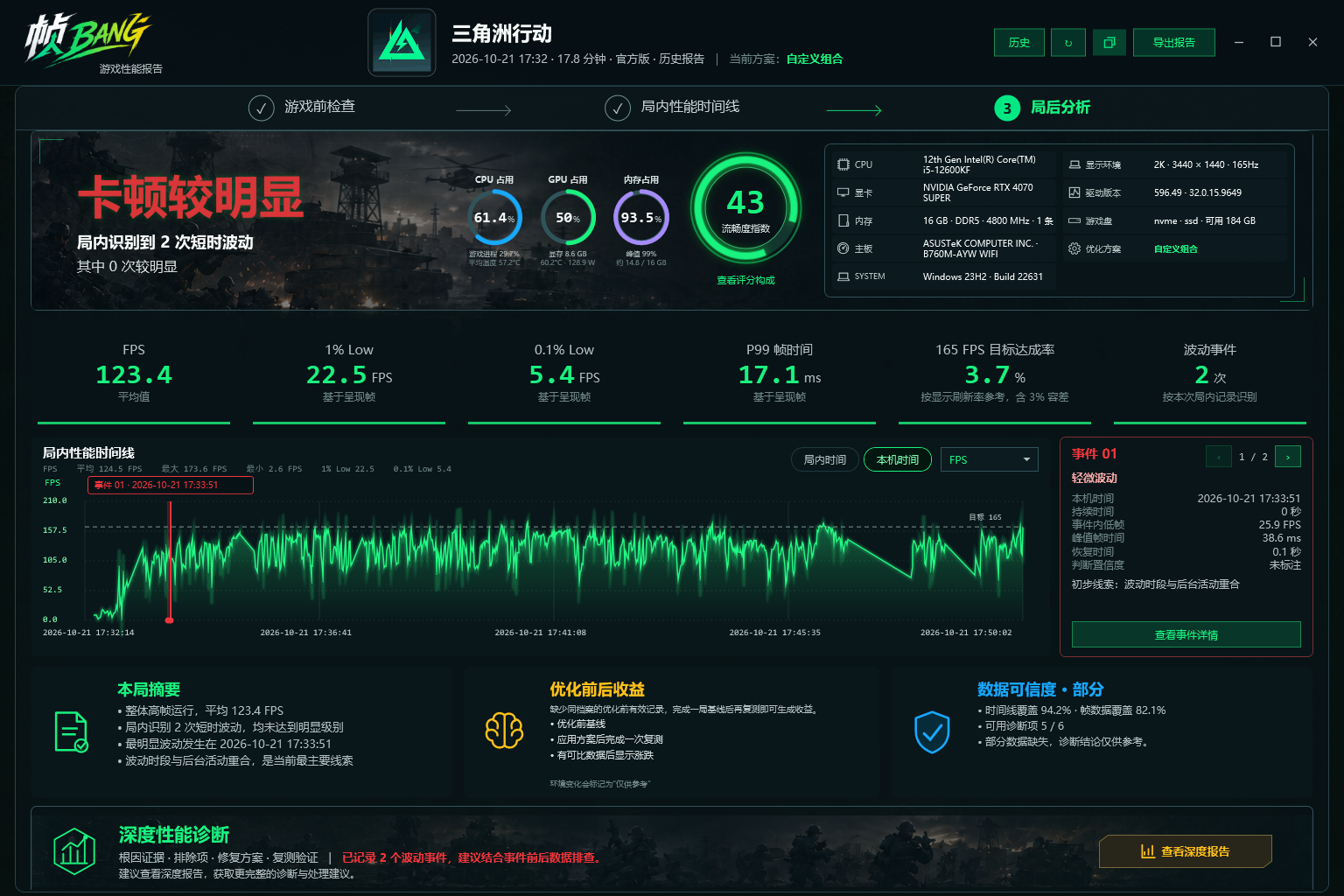
Record from game-process startup to exit, turning live readings into complete sessions, historical trends and records you can retest against.

Report metrics

  • Average FPS, 1% Low and, where enough samples exist, 0.1% Low.
  • Game-process CPU and GPU metrics, plus system memory.
  • Temperature, power, capture duration, frame samples and validity status.
  • Local trends and changes between records under similar conditions.

How recording works

A full session starts automatically when the game is detected. Exiting saves and opens the report. During play, press Ctrl+Alt+F8 to mark stutter or Ctrl+Alt+F9 to save the current segment and keep recording.

Limits

A report describes the recorded session; it does not automatically prove that a setting caused a change. For comparisons, keep the game scene, graphics quality, resolution and frame-rate cap as consistent as possible. Training requires the relevant legal authorization; the current defaults do not mean each purpose was actively selected. Model training runs on the server, does not require users to repeat tests for training and does not start a local training process during gameplay. A completed research-model training run does not automatically apply PC settings. Performance records, user restoration actions and model scores alone do not prove that a configuration is effective, harmful or optimal. Slow-frame counts mean frames exceeding a threshold, not independent stutter events or the number of retained event details. Without complete counts, valid observation time or sufficient coverage, stutter changes remain unknown, not zero. Matching power-source states at the start and end do not prove that no switch occurred. Changes after applying multiple items describe the group, not the effect of any one item. Restore the applied items if the experience worsens. FPS rankings remain under maintenance: the current version hides the Rankings entry and does not provide access to leaderboards. Local reports and historical trends remain available.

08
REFERENCE & DIAGNOSTICS

Graphics guidance, app logs and diagnostics

In-game graphics references, app logs across sessions and full diagnostics that you choose to submit.

Guidance and logs

  • Built-in performance-focused graphics recommendations and references to streamers' public settings.
  • Logs show detection, applied changes, skipped settings, failures and restart requirements.
  • Recent logs remain after closing the app, ready to reopen and copy.

Full diagnostics

First select the issue and any improvement you noticed, then review the data to be uploaded. Sending requires your explicit confirmation. A successful upload returns a retrieval code.

Limits

Diagnostics help narrow down a problem; they do not replace hardware servicing, official driver support or game-server investigation. If upload fails, you can share relevant, redacted log excerpts privately with support.

S11 SEASON REPAIR

S11 Season Repair

Choose fixes that match your symptoms, then run them together. Several item details can remain expanded at once.

Cache and rendering issues

  • Clear GPU DXCache / shader caches: processes NVIDIA, AMD or DirectX caches present on this PC.
  • Clear game PSOCache: directly clears caches within the selected game's permitted scope. They must be rebuilt the next time the game starts.
  • Clear ACE caches: close the game as instructed. Running processes and directory conditions are checked before execution.
  • Follow each item's instructions for switching the DX12 rendering configuration, installing VC++ runtimes or repairing DirectX.

Checks and execution

Power, memory and game-disk items provide checks and troubleshooting. Yellow labels describe capabilities; execution still depends on prerequisite checks. Results distinguish completed, skipped, failed and partially completed actions.

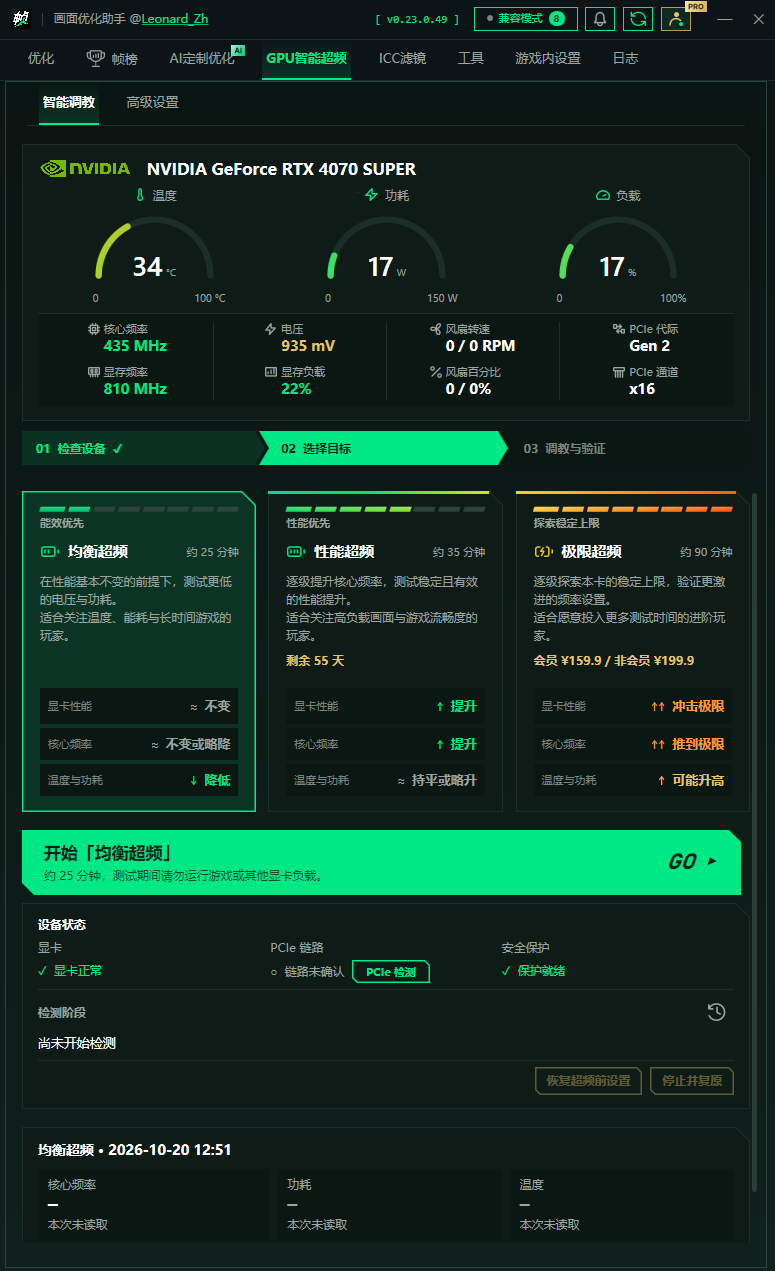
GPU Smart Tuning and the rankings entry are hidden in this version. Read the confirmation before making changes. Rebuilding cleared caches may temporarily cause stutter.

CURRENT CATALOG

Current tweaks and their status

The app's live checks determine whether a setting is visible, selected by default or requires a restart. This reference distinguishes preset options, manual experiments, checks, high-risk changes and legacy restore.

Available in presets Manual / experimental Read-only check High risk Legacy restore / retired

1. Power and scheduling

  • Switch to the Ultimate Performance power plan Available in presets
  • Tune hidden power settings (USB / scheduling) Available in presets
  • Keep the power plan active if the game changes it Manual / Performance preset
  • Remove multimedia network throttling Available in presets
  • Raise MMCSS Games task priorities Available in presets
  • Set MMCSS background CPU reserve to 10% Experimental A/B test
  • GPU interrupt affinity (one performance core) Experimental / performance-focused
  • Disable dynamic tick Manual / Performance preset
  • Increase foreground scheduling priority Legacy restore only

The three power-plan changes require a separate confirmation. Missing hybrid-CPU settings are skipped automatically.

2. Gaming and display

  • Enable hardware-accelerated GPU scheduling (HAGS) Available in presets
  • Enable Windows Game Mode Available in presets
  • Disable Xbox background recording (Game DVR) Available in presets
  • Disable multiplane overlay (MPO) Available in presets
  • Disable Optimizations for windowed games Manual A/B test
  • Assign the high-performance GPU to the current game Game path required
  • Disable fullscreen optimizations for the game Legacy restore only
  • Raise game-process CPU / I/O priority Legacy restore only

Fullscreen-optimization disabling and High game priority are no longer applied because of hotkey, streaming and Steam/WeGame same-name-process compatibility issues.

3. Memory and Windows

  • Keep kernel code in memory Available in presets
  • Disable memory compression and page combining Manual comparison only
  • Disable Windows Error Reporting Available in presets
  • Disable window transparency Available in presets
  • Set visual effects to best performance Manual
  • Disable Enhance pointer precision Mouse feel
  • Disable the SysMain prefetch service Manual
  • Disable Windows Search indexing Manual
  • Disable hibernation and Fast Startup Primarily for desktops
  • Set fixed virtual memory based on RAM capacity Legacy restore only

Disabling memory compression is not included in any built-in preset or Select All. The current release does not create fixed-size pagefiles.

4. Advanced GPU settings

  • Prevent dynamic GPU downclocking (P-State) Experimental A/B test
  • Check NVIDIA App automatic optimization Read-only
  • NVIDIA / AMD GPU model spoofing High risk · second confirmation
  • Import NVIDIA Profile Inspector profiles Disabled

P-State tuning can substantially increase idle power, temperature and fan noise. It is excluded from default presets and Select All. NVIDIA App checks are read-only; FrameBar does not change its settings for you.

5. Checks and stutter fixes

  • Primary GPU PCIe link check and 10-second recheck Read-only check
  • Visual C++ 2015–2022 runtime check Read-only check
  • Memory speed and XMP / A-XMP / EXPO / DOCP check Read-only check
  • Clear DirectX / NVIDIA / AMD / Intel shader caches Direct fix

The first three checks are read-only and do not change the system. Shader-cache clearing deletes files that can be rebuilt without a restore backup. Allow time for recompilation when you next enter the game.

Why are features from older tutorials missing?

Foreground scheduling priority, fixed virtual memory, disabling fullscreen optimizations, High game CPU/I/O priority and NVIDIA Profile Inspector imports have been retired. Valid legacy backups remain available in Restore Settings. An old tutorial mentioning a feature does not mean it has been re-enabled.

GPU MODEL SPOOF

GPU model spoofing

One of the highest-risk experiments in this list. Being supported does not mean it is recommended, or that the game will use the reported model.

Eligibility and target models

Shown only when the primary GPU is NVIDIA or AMD, not Intel. Available targets:

  • NVIDIA GeForce GTX 750 Ti
  • NVIDIA GeForce GTX 1050 Ti
  • NVIDIA GeForce RTX 2050
  • NVIDIA GeForce RTX 2060
  • AMD Radeon RX 560

Current suggested defaults

  • NVIDIA laptops: GTX 1050 Ti.
  • NVIDIA desktops: GTX 750 Ti.
  • Primary AMD GPU: AMD Radeon RX 560.
  • For GPUs older than the RTX 30 series, keeping the real model is generally preferable. If you try spoofing manually, compare the same scene before and after.

Risks and how to assess the result

Spoofing may change the game's rendering path, lower FPS, cause a black screen or prevent you from entering the game. It requires a second confirmation and is tied to the primary GPU's PnP identity. If Windows enumeration does not confirm the target name, the write is rolled back immediately and not counted as successful. After a successful change or restore, restart Windows before launching the game; restarting only the game may retain the old name. v0.23.0.33 fixed this stale-model issue on some PCs. Games that read the hardware directly may still ignore the Windows-reported name after a restart. If anything goes wrong, restore GPU Spoofing and restart again. Driver updates or reinstalls may also restore the real name.

RESTORE & TROUBLESHOOTING

Restore and troubleshoot—in this order

Undo the recent changes first, then investigate whether the issue comes from settings, caches, drivers or the game version.

Black screens, flicker, stutter or game startup failures

  1. Stop applying changes. If the desktop remains safely accessible, open Optimize and select Restore.
  2. First restore whichever of Ultimate Performance, hidden power settings and power-plan locking you actually applied.
  3. Restart Windows and retest.
  4. If the problem persists, restore the remaining applied settings.

Lower FPS after tuning

  1. Use Stutter Troubleshooting to check caches, the high-performance GPU and Visual C++ runtimes.
  2. Let shader caches finish rebuilding.
  3. If there is no improvement, restore all changes from this round and restart.
  4. Retest the same scene.

Mouse, disk-space, heat or power issues

For changed mouse feel, restore Enhance pointer precision. For an oversized pagefile from an older release, restore the legacy virtual-memory setting. For increased heat or power, prioritize restoring Ultimate Performance, hidden power settings, GPU downclocking and GPU interrupt affinity.

Upload full diagnostics

Open Logs → Send diagnostics…. Select the issue and whether things improved, wait for the report to be assembled, review what will be sent, then confirm the upload. The retrieval code may grant access to the report: share it only with verified support through a confirmed private channel. If report assembly fails, nothing was uploaded. If uploading fails, describe the issue first and provide redacted excerpts only as needed. Do not send full logs or retrieval codes to public channels or by email as a default.

Restoration records changed, or Restore all restored 0 items

If records change, check the original game items again in the refreshed list; do not accidentally select another game. A log reporting subsequent changes and zero restored items means the whole batch stopped before writing, not that restoration succeeded. Select only relevant items marked as exactly restorable; leave items with subsequent changes untouched. The inventory and backups remain when restoration is incomplete. If the same prompt recurs, provide the exact entry used, selected items and diagnostic code; do not forcibly overwrite the registry.

Cannot change the K model or NVIDIA panel settings

Record the specific option, disabled control or error text and the GPU name displayed by the app. If GPU spoofing is enabled, close the game and restore only GPU Spoofing or the available GPU Model Spoofing (Residual Recovery) item. Restart, confirm the real model, then retest. Using the DLSS Super Resolution K model on RTX 20-series and newer GPUs still requires game and driver/app support, with the corresponding DLSS feature enabled in the game; do not confuse this with frame-generation support. Timing alone does not prove spoofing caused a panel error. If it persists, provide screenshots, the app version and diagnostic code; do not reset the entire driver profile database. The automatic optimization check is read-only and does not lock or unlock these settings.

Do not delete backups created by the tool. Shader caches can be rebuilt and have no original-value backup; wait for the driver and game to rebuild them after clearing. If you cannot reach the desktop, the client's Restore button is unavailable too: use offline recovery instructions saved beforehand, Windows Recovery Environment, or manufacturer/professional assistance. A burning smell, smoke or similar emergency requires personal safety first, ahead of preserving logs. Check in advance whether a usable restore point exists; do not assume one was created.

QUESTIONS & ANSWERS

Frequently asked questions

Common questions about downloads, installation, uninstalling, security alerts, restore, disk space and GPU model spoofing.

Q1 Is FrameBar safe? What about antivirus alerts?
A

The software is designed for system checks and optimization, but an official source, matching hash or intellectual-property application is not an absolute safety certification. Review alerts against the specific file, version and details; do not automatically assume a false positive. If the source or verification is abnormal, stop running it and contact support.

Q2 Does it modify game files?
A

Season Repair may clear or restore PSOCache, change rendering settings or repair game DX12 components for items confirmed by the user. It does not inject into the game process or read/write game memory. ACE-related actions may back up configuration and modify service records according to the confirmed plan, after prerequisite checks.

Q3 Can I install it on another drive?
A

Yes. You can choose another local fixed drive during installation. The installer checks that the target folder meets its security requirements.

Q4 Where do I download it?
A

Get the latest version from https://fpsbang.com/ or download official release assets from GitHub Releases. v0.23.0.37 is an optional update; the minimum supported version is 0.23.0.36. Older versions can still upgrade through the in-app updater. If an older version reports that script execution is blocked at startup, download and install the latest release from the website. The officially signed update manifest determines the current live version and effective support range.

In-app update downloads use standard HTTPS port 443 on the official df.ltz88.cn domain. Queuing and resume data are tied to the target version; the old download route for released v34 remains available. Website downloads follow the actual released version, not a candidate still in preparation; downloads already started stay pinned to their original installer. This improvement does not require uninstalling, reinstalling or reconfiguring optimizations. Failed or cancelled downloads do not change the installed version. Retry in the app later; the website is a fallback. Close the game before updating. Do not disable certificate checks or antivirus protection, or use third-party update packages. Restore any malfunctioning feature according to its instructions after installation; do not overwrite the installation with an old package or lower the minimum-version requirement yourself.

Q5 What if Windows blocks the download or installer?
A

Stop and check the official website entry, version, SHA256, actual signature and alert details first. Missing signatures or reputation may also trigger warnings, but do not establish that a file is safe. Do not bypass protection before verification; contact support or cancel installation.

Q6 What if antivirus software detects or quarantines it?
A

Keep the alert name, file version and necessary redacted details, and ask the operator or security-software vendor to review them. Do not treat every alert as a false positive. Until verified, do not restore unknown files, add exclusions or disable protection, and do not publicly upload full diagnostics or account information.

Q7 What if tuning causes stutter, a black screen or failure to enter the game?
A

Stop applying changes. If the desktop remains safely accessible, open Restore Settings and restore the related items actually applied, such as Ultimate Performance, deep tuning of hidden power options or power-plan locking, then restart as instructed. Restore other items if necessary. If the desktop is inaccessible, follow the offline recovery guidance above. Privately describe the symptoms to support first; preview and confirm any diagnostics as needed, and keep the retrieval code private.

Q8 What if FPS drops only after tuning?
A

Use Stutter Troubleshooting to check shader caches, the high-performance GPU and Visual C++ runtimes. If it does not help, restore all settings applied in that round, restart and retest the same scene.

Q9 What if I notice other negative effects?
A

Stop applying changes. While the system remains safe to operate, restore the related items and restart as instructed. If the desktop is inaccessible or a hardware emergency occurs, follow the recovery guidance above. If diagnostics are needed, review what will be uploaded, then confirm; share the retrieval code only in private.

Q10 Why does my mouse feel faster or slower?
A

Restore Disable Enhance pointer precision in Restore Settings. This setting changes the Windows pointer-acceleration curve, not mouse DPI or in-game sensitivity.

Q11 Why does the game still show the real or old GPU model?
A

After a successful model change, restart Windows as prompted before opening the game. Restarting just the game may retain the old name. Some games read the hardware directly and may ignore the Windows-reported name even after a restart. If you get a black screen or cannot enter the game, restore GPU Spoofing and restart again.

Q12 Why is my drive full after tuning?
A

The current release no longer applies fixed virtual memory. An older version may have created a large pagefile.sys on the system drive. Restore the legacy virtual-memory setting and restart. If space is still not recovered, use the diagnostic workflow for help.

Q13 Which NVIDIA spoof model should I choose?
A

Current suggestions depend on the device: GTX 1050 Ti for laptops, GTX 750 Ti for desktops. For GPUs older than the RTX 30 series, keeping the real model is generally preferable. Any target may reduce FPS, so compare the same scene before and after and restore immediately if results worsen.

Q14 How do I uninstall FrameBar properly?
A

Wait for any optimization or restore operation to finish, then exit FrameBar. Double-click the uninstall entry or use Windows Installed apps / Control Panel. The entry verifies and, where needed, recovers the current desktop user's context. The FrameBar uninstall helper requests administrator approval when system privileges are required. System-configured LocalAppData redirection to a fixed local drive is supported; network paths, missing folders or paths containing junctions cause a stop—ask the PC administrator to check. Normal uninstall preserves protected backups, account sessions, device identity, data choices and performance history. It does not sign you out or delete that data. Reinstalling lets you continue restore operations. The shared PawnIO sensor driver remains because other monitoring software may use it.

Q15 How are online data uses and manual diagnostics handled?
A

After accepting the usage notice and entering the app, anonymous usage, deep diagnostics, personalized-optimization data use and account history are enabled by default. Settings do not expose separate purpose-specific controls. Existing explicit opt-outs survive restarts and upgrades; damaged state does not authorize network access. Local tuning, restore and performance recording do not depend on these network uses. Deep-diagnostic windows may include process names and network-connection details. Every full diagnostic upload must still be initiated, reviewed and confirmed by you; cancelling sends nothing. Requests to access, copy, stop processing or delete data remain available through the privacy-policy channels. Requests already sent may complete.

v36 account-linking candidate: when uploads are allowed and a valid account is signed in, sessions are associated with that account independently of the Account History setting. Switching accounts does not reassign sessions already stored. Signing out locally stops sending account credentials; the current association becomes invalid after the server receives and applies a logout or unlink request. Signing out does not delete historical data; deletion requests follow the privacy policy. This takes effect with the official C# client release; a local candidate does not mean it is live.

Q16 Why do temperature readings take time to appear?
A

Sensors show “…” while warming up, then N/A if no valid reading arrives. That does not mean zero degrees. Initialization retries are limited, CPU/GPU sampling errors are handled separately and old values are not shown as current temperatures. If readings stay unavailable, rerun detection, then submit diagnostics if needed.

Q17 Can I use it on ARM64 or a PC with strict signing policies?
A

This release supports Windows 10/11 on Intel/AMD x64. Installation stops on ARM64 or 32-bit Windows. If the PC allows elevation only for validated signed programs and the helper does not satisfy that policy, startup stops and asks you to contact the administrator; it does not bypass the policy with a system interpreter or change it. If disabled UAC or a similar condition opens the mode-selection window, Personal PC mode enables UAC as described there; for the built-in Administrator it also enables Admin Approval Mode, then exits and requires a Windows restart. Gaming Café mode preserves the existing policies and opens a compatible session.

Q18 Why did GPU spoofing disappear after a restore?
A

Restore all includes GPU spoofing. Restoring only ordinary tweaks should leave unselected spoofing intact. Compatibility mode may temporarily restore the real name under its protection settings; GPU driver updates or reinstalls may do the same. Before sending diagnostics, note where you started the restore, which items you selected, whether compatibility mode was active and whether the GPU driver changed. Avoid repeatedly switching while the cause is unclear.