FrameBar Built for Delta Force.
Tune your PC for Delta Force—with a clear record of what changed and a way back. FrameBar checks your hardware, Windows setup and game location, then brings together targeted tweaks, compatibility fixes and per-setting restore in one place.
- 35 tweaks, checks and fixes
- 3 presets + custom presets
- Restore individual settings
- Run repairs within the confirmed scope
English website · The published Windows client and screenshots are currently in Chinese. A local bilingual v37 candidate is not yet released; the download above is unchanged. See language instructions and translated controls.
Download slots are assigned in order. Keep this page open and your download will start when it is your turn. Cancelling releases your place immediately.
Live usage stats
Eight tools. One workflow.
Live performance dashboard
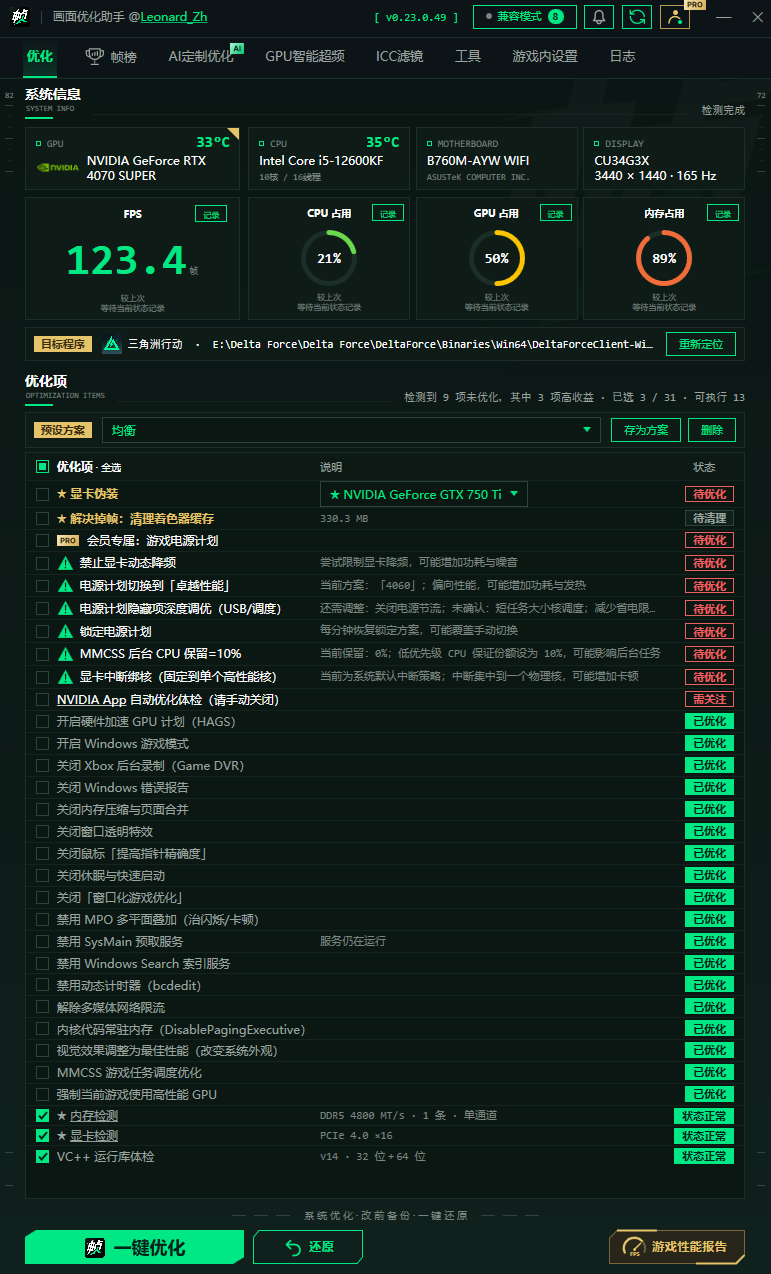
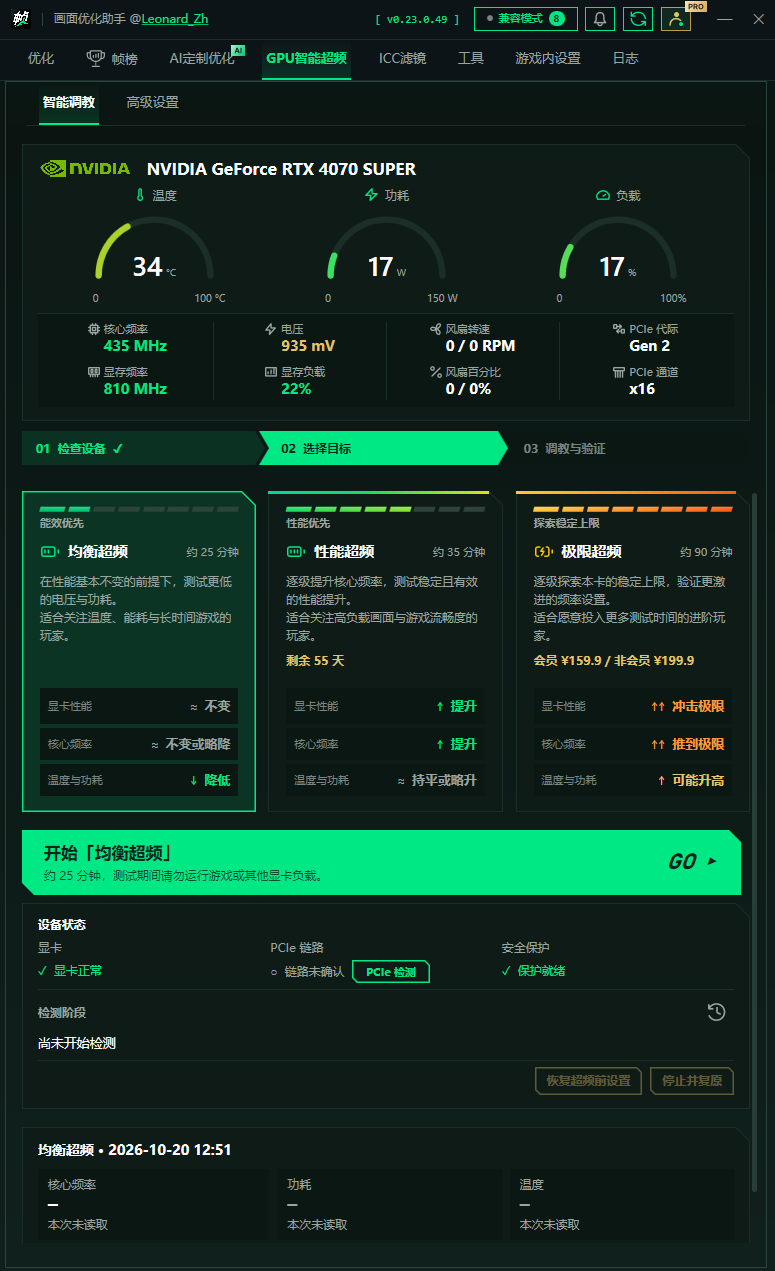
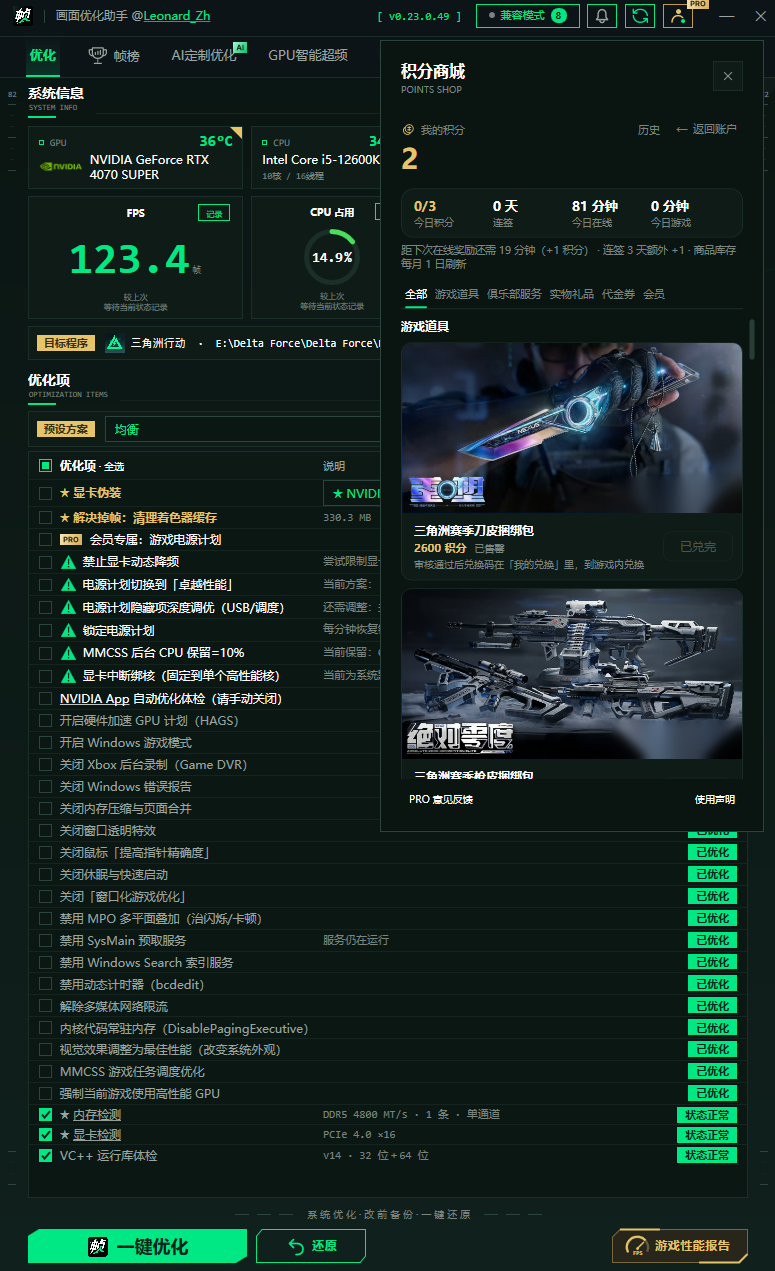
Check FPS, CPU, GPU and memory usage, and CPU/GPU temperatures. View display details, resolution and refresh rate, and review past readings saved on this PC.
Learn more →Windows tuning
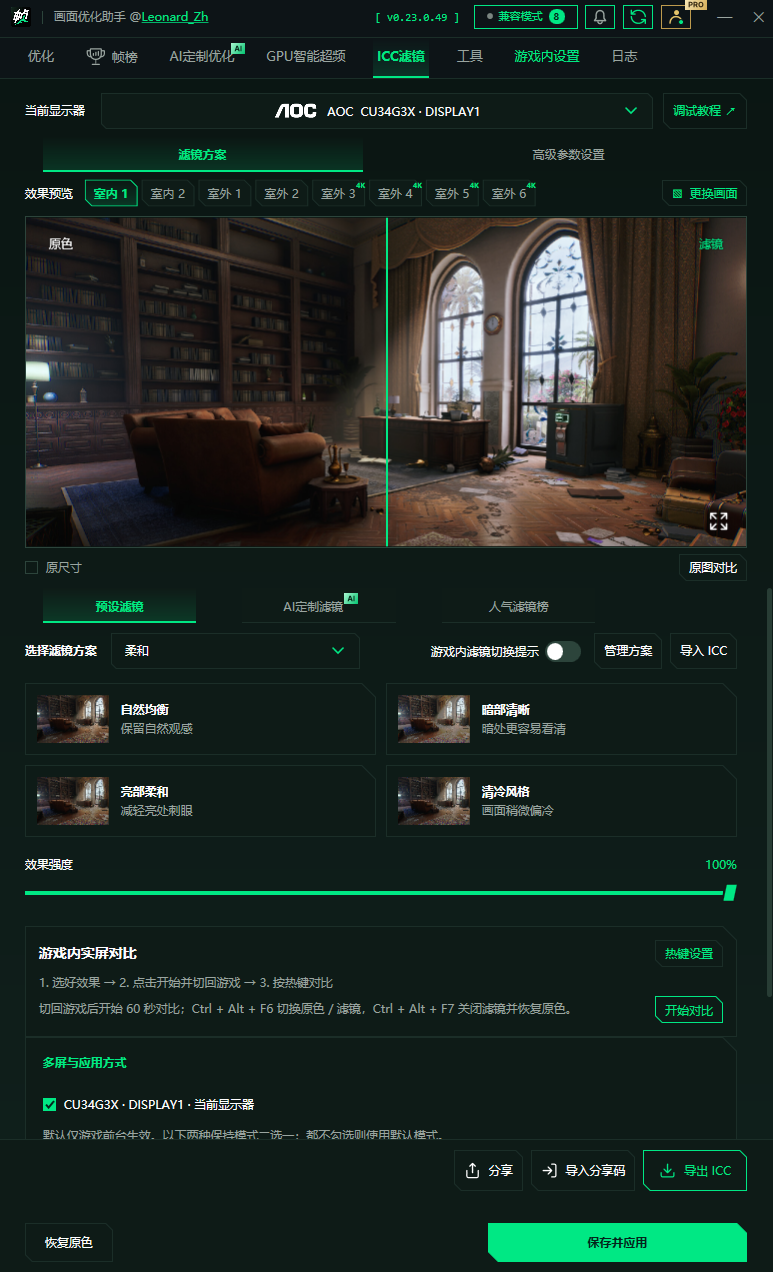
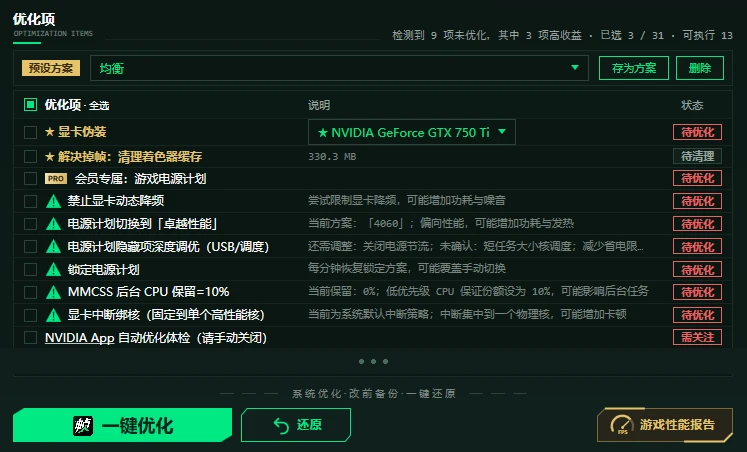
Adjust power, scheduling, background recording, GPU preferences, MPO, MMCSS and more. Choose Performance, Balanced or Stability—or make your own preset.
Learn more →Game compatibility mode
Defaults on when other games are found, unless you decided otherwise. This restores the real GPU name and skips selected conflicting tweaks while active.
Learn more →Stutter troubleshooting
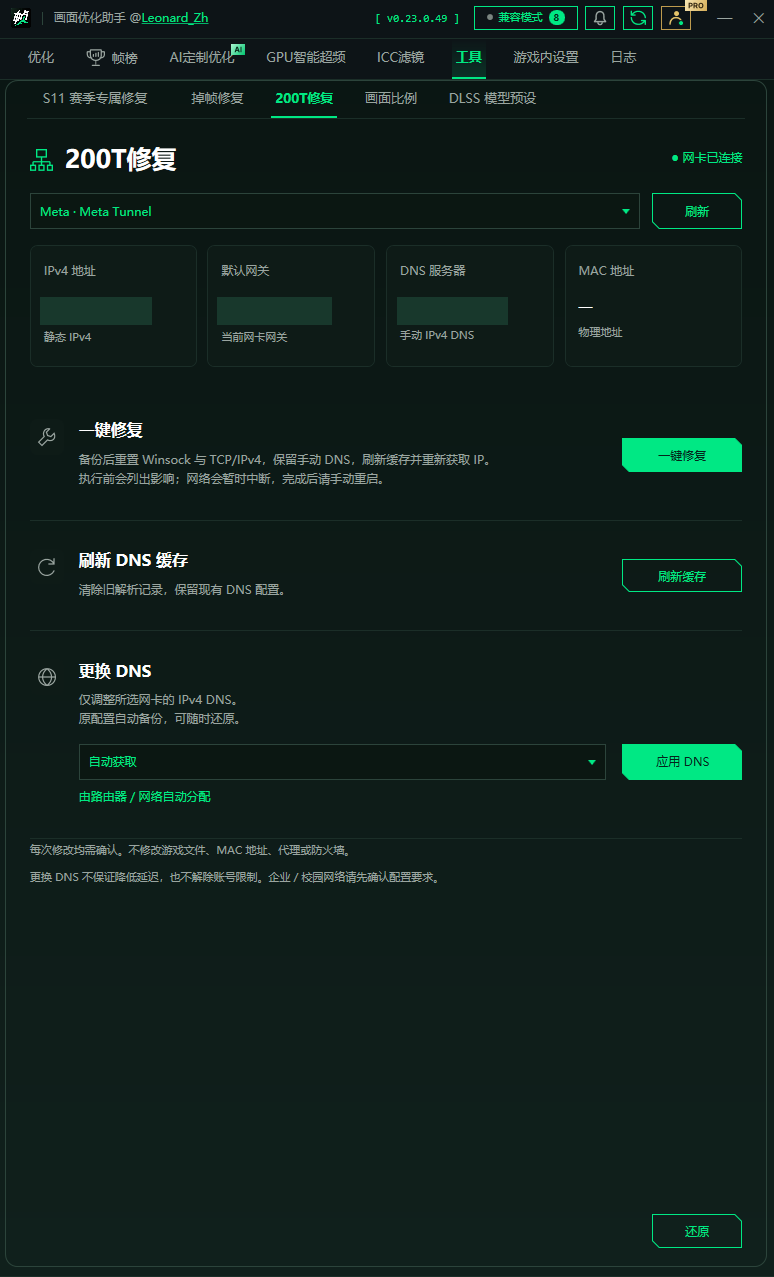
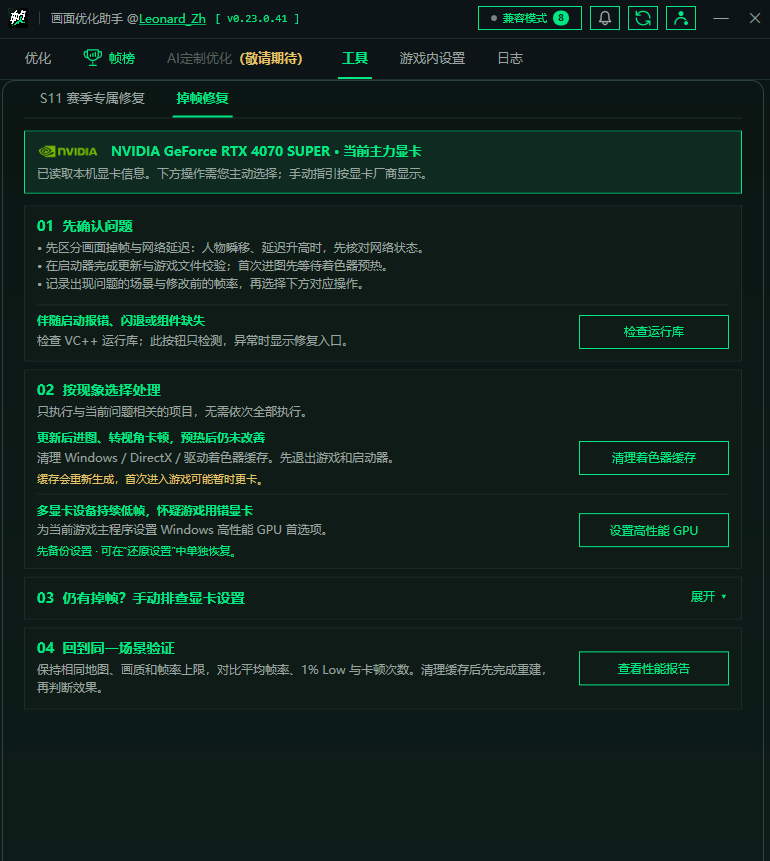
Follow GPU-specific steps for NVIDIA, AMD or Intel. Clear shader caches, assign the high-performance GPU and check Visual C++ runtimes from one place.
Learn more →Read-only hardware checks
Check PCIe link status, reported limits, Visual C++ v14 runtimes and actual versus rated memory speed. Run a 10-second check under load and get platform-specific XMP, A-XMP, EXPO or DOCP guidance.
Learn more →Backups and per-setting restore
Save original values before changing reversible system settings. Restore one, several or all of them, with conflict checks to protect changes you made afterward.
Learn more →Game performance reports
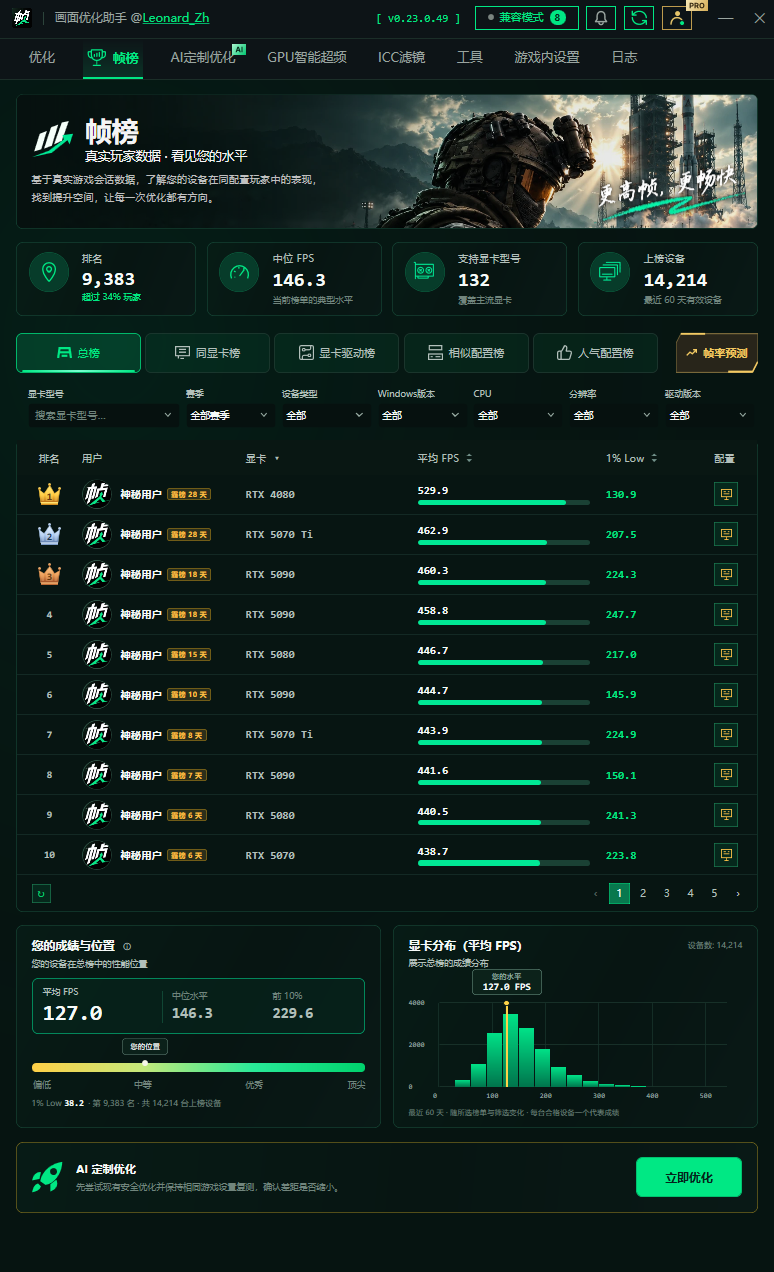
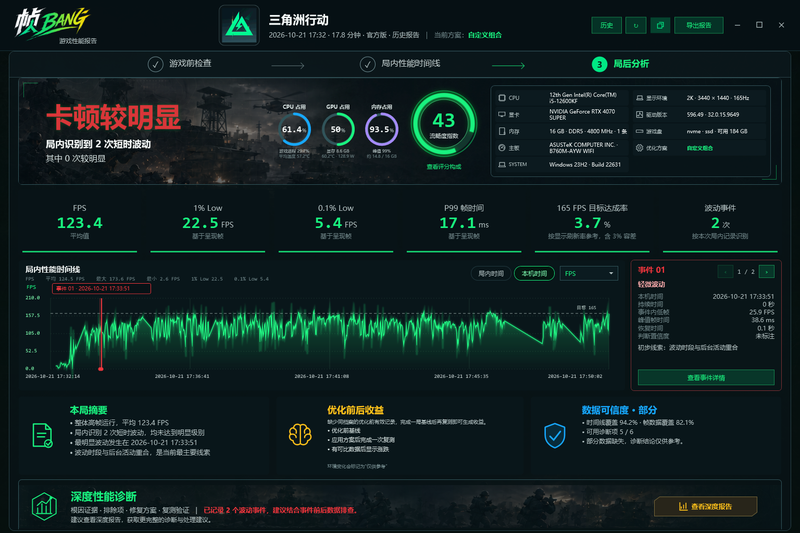
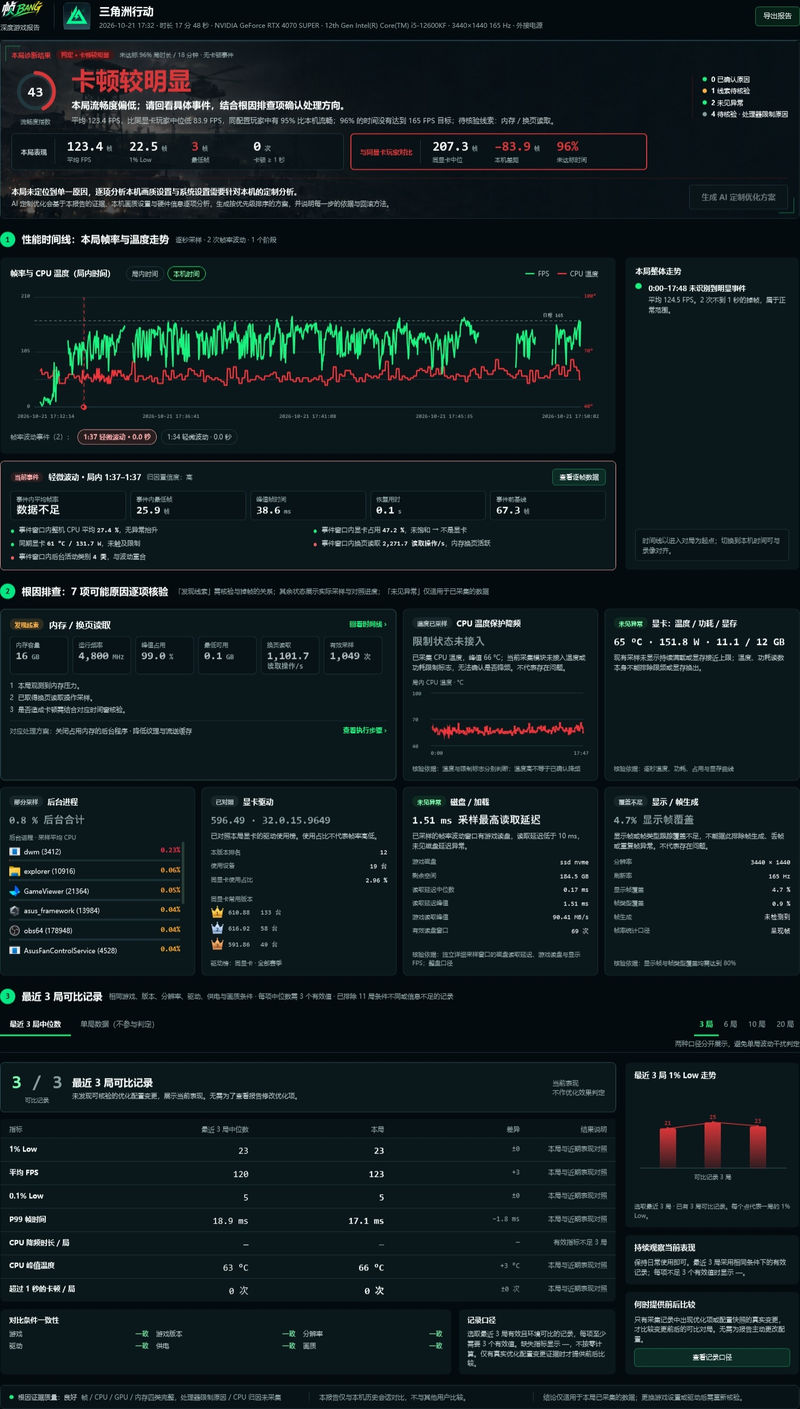
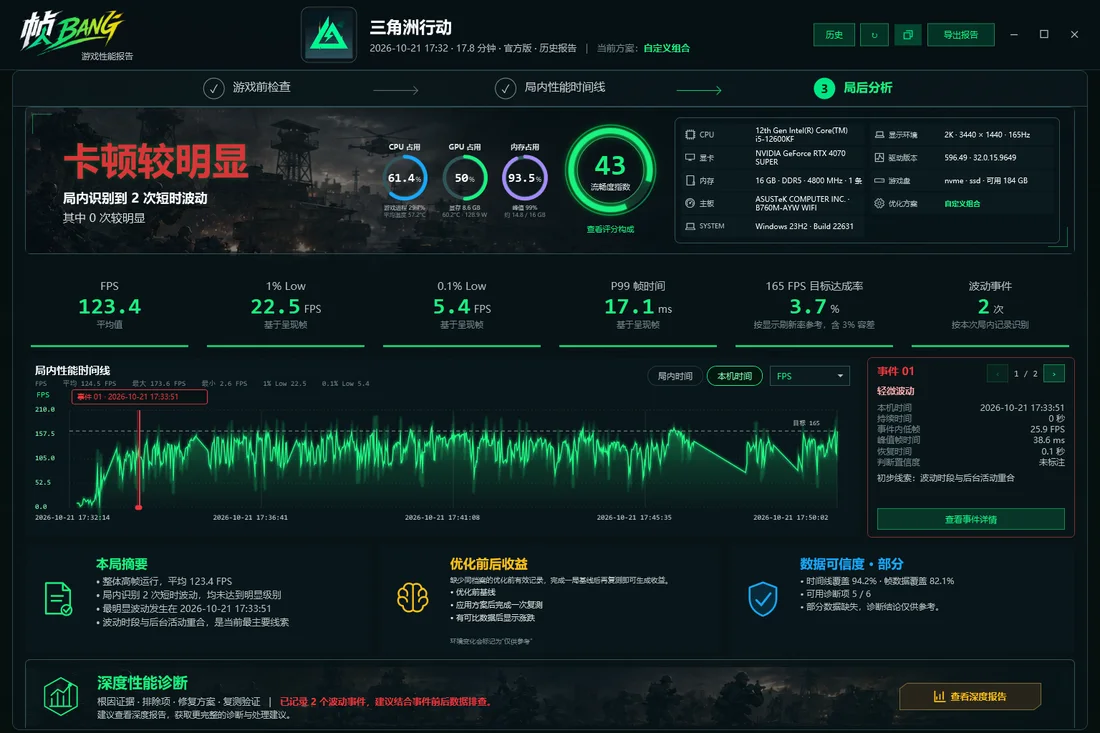
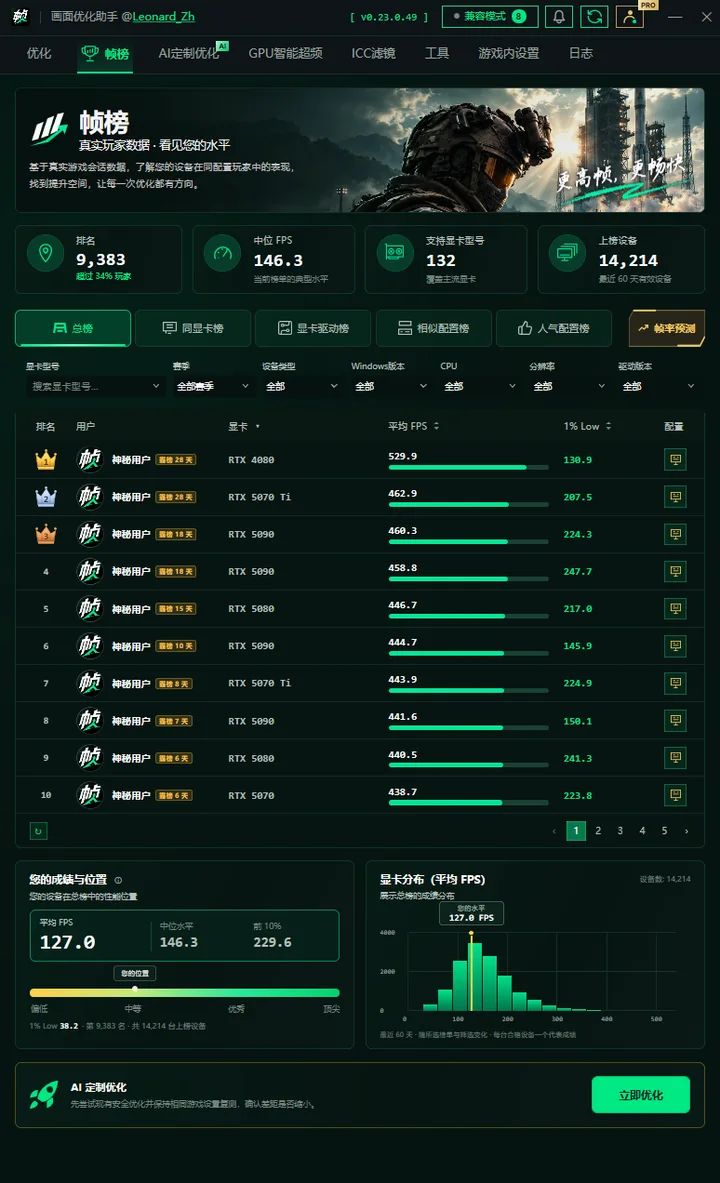
Record complete gaming sessions, including average FPS, 1% Low, 0.1% Low and CPU/GPU/memory metrics. Review trends and compare sessions under similar conditions.
Learn more →Settings guidance and diagnostics
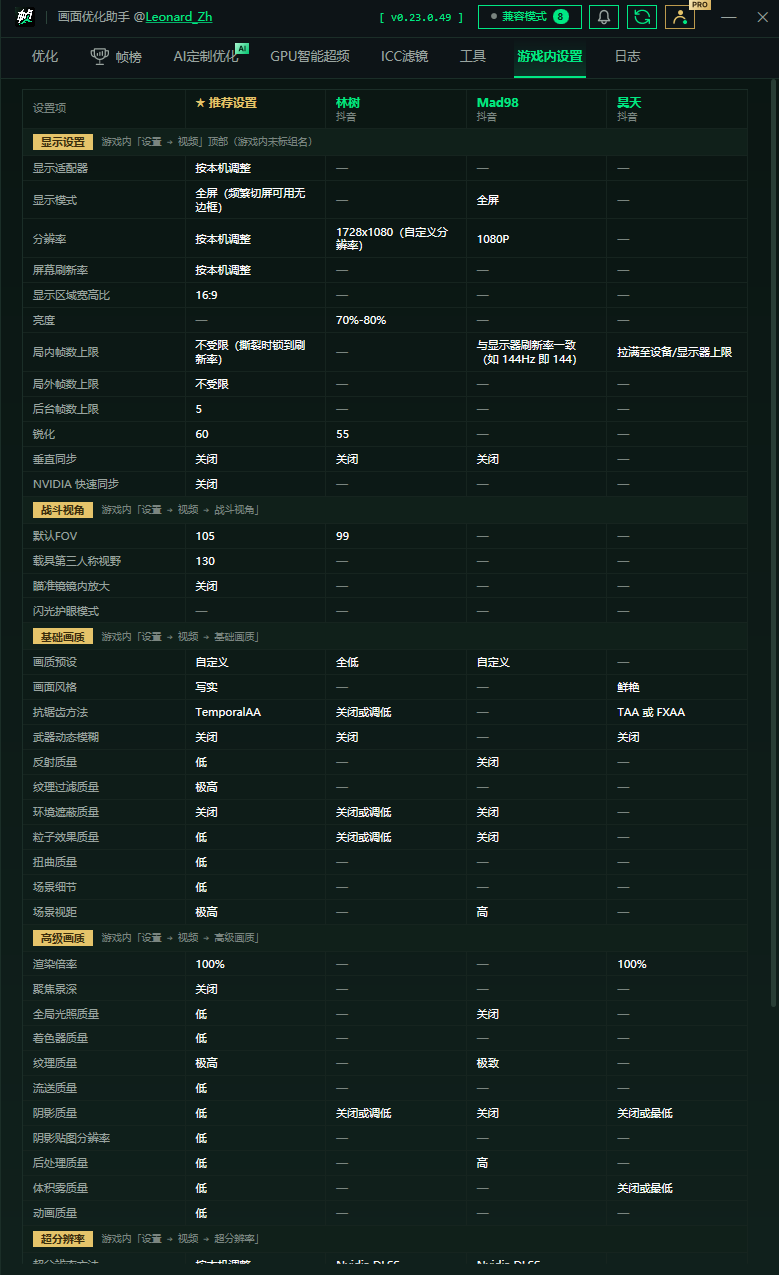
Get in-game graphics recommendations matched to your hardware. When you need help, review what will be sent and send a full report only after confirming it.
Learn more →Available tweaks depend on your hardware, permissions and game path.
35 tools, explained—benefits and trade-offs
Power and CPU scheduling
01—09 / 3501 Switch to the Ultimate Performance power plan Recommended by default
Why: The Balanced power plan adjusts frequency and idle states as demand changes. Some desktops may take longer to ramp up for sudden workloads.
Potential benefit: Reduce conservative downclocking so the CPU responds more readily to load, potentially smoothing frame-time spikes caused by frequency changes.
Trade-offs: Higher idle power use and shorter laptop battery life. A restart is needed for the full effect.
02 Tune hidden power-plan settings Recommended by default
Why: USB link power saving and hybrid-CPU scheduling options are usually hidden from Control Panel, but can affect input response and task placement.
Potential benefit: Reduce USB power-state transitions and favor performance cores on supported hybrid CPUs, with per-setting restore available.
Limits: Unsupported settings are skipped. The current release does not change processor performance-boost behavior. Restart required.
03 Keep the selected power plan active Manual selection
Why: Games, drivers or PC-vendor utilities may switch the active power plan back to Balanced.
Potential benefit: A scheduled task checks once a minute and reapplies your selected performance plan if it has been changed.
Trade-offs: This creates a persistent scheduled task. Restoring or uninstalling removes it.
04 Enable hardware-accelerated GPU scheduling (HAGS) Recommended by default
Why: On supported GPUs, move part of graphics scheduling to the GPU's hardware scheduler to reduce scheduling overhead on the CPU.
Potential benefit: With a compatible Windows and driver combination, this may reduce GPU scheduling latency and improve frame times.
Limits: Results vary by driver. Compare the same scene with and without it. Restart required.
05 Enable Windows Game Mode Recommended by default
Why: Windows updates and some background activity can compete with the game for CPU and disk resources.
Potential benefit: Let Windows recognize the gaming workload and deprioritize background activity to reduce momentary contention.
06 Disable Xbox background recording (Game DVR) Recommended by default
Why: Background capture uses GPU encoding resources and memory bandwidth. Parts of the capture pipeline may remain active even when you are not deliberately recording.
Potential benefit: Free capture resources and rule out a common source of lost frames or uneven frame times.
Trade-off: Xbox background recording will no longer be available.
07 Foreground scheduling priority Restore legacy changes only
Why: Identify foreground-priority values written by older releases and keep a reliable restore path for those backups.
Potential benefit: The current release no longer applies this tweak. Existing changes can be restored to their original values.
Why retired: It can deprioritize background tools used for streaming hotkeys, music and microphones. It is no longer applied because of compatibility issues.
08 Keep kernel code in memory Recommended by default
Why: Paging kernel code out and back in requires disk access, which can contribute to latency spikes as workloads change.
Potential benefit: Keep executable kernel code in physical memory where possible to reduce sudden stalls from paging.
Trade-offs: Not recommended with 8 GB of RAM or less. Restart required.
09 Disable Windows Error Reporting Recommended by default
Why: After a crash, Windows may collect a dump and start error-reporting processes.
Potential benefit: Reduce the burst of disk and CPU activity after a crash, potentially shortening a prolonged freeze.
Trade-off: Automatic error-report generation and submission are disabled within the scope of this setting.
Memory, background services, input and timers
10—19 / 3510 Disable memory compression and page combining Manual comparison only
Why: Memory compression trades CPU work for lower physical memory use. On some CPU-bound systems, that extra work may affect frame times.
Potential benefit: Compare CPU load and frame times with compression disabled.
Trade-offs: Memory pressure may cause more paging and worse stutter. Not included in presets or Select All. Restart required.
11 Disable window transparency Recommended by default
Why: Transparency adds compositing work for Desktop Window Manager.
Potential benefit: Reduce desktop-compositing overhead; any difference is more likely to be noticeable on lower-end hardware.
Trade-off: Gains are usually small, and Windows will look different.
12 Set visual effects to best performance Manual selection
Why: Window animations, shadows and similar effects use a small amount of CPU/GPU compositing resources.
Potential benefit: Turn off nonessential visual effects to reduce desktop overhead.
Trade-off: Windows will look noticeably plainer. Not selected by default.
13 Disable Enhance pointer precision Mouse feel—not FPS
Why: Windows pointer acceleration changes cursor travel according to how quickly you move the mouse, even over the same physical distance.
Potential benefit: Use a more consistent input mapping to develop a predictable aiming feel.
Trade-offs: This does not increase FPS. The mouse may feel faster or slower. A separate confirmation is required, and the setting can be restored on its own.
14 Disable multiplane overlay (MPO) Recommended by default
Why: Some combinations of GPU driver, display and MPO can cause flicker, black screens or irregular frame times.
Potential benefit: Bypass the problematic overlay path to test whether it resolves flicker or stutter on an affected system.
Trade-off: DWM power use during video playback may increase. Restart required.
15 Remove multimedia network throttling Recommended by default
Why: Windows' multimedia network-throttling policy can limit non-multimedia packet processing in high-packet-rate workloads.
Potential benefit: Remove system-imposed queuing as a possible source of short latency spikes where it is affecting the connection.
Limits: This cannot fix ISP routing or server congestion. Any benefit depends on a local bottleneck.
16 Set MMCSS background CPU reserve to 10% Experimental A/B test
Why: Set the guaranteed share for lower-priority, non-multimedia work to 10% and compare scheduling behavior manually.
Potential benefit: In some CPU-bound scenarios, this may leave more scheduling capacity for the foreground game.
Trade-offs: Background streaming, capture, music or microphone hotkeys may be affected. Not included in built-in presets or Select All.
17 Disable the SysMain prefetch service Manual selection
Why: SysMain preloads frequently used apps in the background. Under disk or memory pressure, it may compete with the game.
Potential benefit: Reduce background disk and memory activity on PCs where prefetch activity has been confirmed as a problem.
Trade-offs: Benefits on SSDs are uncertain, and frequently used apps may start more slowly. Off by default. Restart required.
18 Disable Windows Search indexing Manual selection
Why: The indexing service periodically scans files to build its index, creating background disk I/O.
Potential benefit: Reduce scanning on PCs where indexing activity conflicts with gameplay.
Trade-offs: Start menu and File Explorer searches become noticeably slower. Best reserved for users who rarely use Windows search. Restart required.
19 Disable hibernation and Fast Startup Primarily for desktops
Why: Fast Startup preserves part of the system state and can sometimes carry driver or power-state issues across shutdowns. The hibernation file also uses system-drive space.
Potential benefit: Free the space used by hiberfil.sys and let the next startup initialize drivers from a fresh state.
Trade-offs: Hibernation and Fast Startup become unavailable. Not selected by default on laptops.
GPU settings, game targeting and execution policies
20—29 / 3520 Prevent dynamic GPU downclocking (P-State) Manual selection
Why: As GPU load changes, some devices show brief frame-time spikes while responding to clock-speed transitions.
Potential benefit: Keep the GPU closer to a sustained performance state to test whether dynamic clock changes are causing instability.
Trade-offs: Higher idle power, temperatures and fan noise; shorter laptop battery life. Off by default. Restart required.
21 Check NVIDIA App automatic optimization Read-only check
Why: NVIDIA App's automatic optimization can overwrite graphics settings you chose in the game.
Potential benefit: Check whether automatic configuration is still enabled when investigating settings that revert or visuals that change unexpectedly.
Limits: FrameBar reads the status but does not write NVIDIA settings. If enabled, turn it off yourself in NVIDIA App if you choose.
22 Set GPU interrupt affinity Experimental / performance-focused
Why: GPU interrupts concentrated on CPU0 or an efficiency core may compete with other system interrupts and increase DPC latency.
Potential benefit: Where performance cores can be identified reliably, assign the discrete GPU's interrupts to one suitable performance core and test for reduced contention.
Trade-offs: A single core may become an interrupt bottleneck and reduce FPS. Unavailable if the target GPU cannot be identified. Restart and A/B testing required.
23 Raise MMCSS Games task priorities Recommended by default
Why: Windows provides task, GPU, background and file-I/O priorities for the MMCSS Games profile.
Potential benefit: Assign higher priorities to this profile to test whether supported game paths are less affected by background I/O contention.
Limits: Expected gains are usually small, not a fixed FPS boost. The change is restorable.
24 Disable Optimizations for windowed games Manual A/B comparison
Why: This Windows feature can reduce windowed-game latency, but may conflict with certain overlays, drivers or display combinations.
Potential benefit: On an affected PC, turning it off may reduce stutter or visual problems in windowed mode.
Trade-off: Other PCs perform better with it on. Off by default; compare both states in the same scene.
25 Disable dynamic tick Manual / performance-focused
Why: Dynamic tick coalesces timer interrupts while idle. On some systems, workload transitions may introduce timing variation.
Potential benefit: Use more regular timer interrupts to test whether frame pacing becomes more consistent.
Trade-offs: Higher idle power use and shorter laptop battery life. Off by default. Restart required.
26 Disable fullscreen optimizations for the game Restore legacy changes only
Why: Identify fullscreen-compatibility settings written to game paths by older releases and provide a precise restore path.
Potential benefit: No longer applied by the current release. Existing backups can restore the original state.
Why retired: Exclusive fullscreen can disrupt global hotkeys for streaming, music and microphone tools.
27 Assign the high-performance GPU to the game Game path required
Why: Windows normally chooses the rendering GPU on hybrid-graphics laptops. An incorrect choice may run the game on integrated graphics.
Potential benefit: Explicitly assign the discrete GPU to the target game to avoid using the wrong adapter.
Limits: Usually makes little difference on a single-GPU PC. Applies only to identified game executables.
28 Set game CPU/I/O priority to High Restore legacy changes only
Why: Identify game-process priority values written through IFEO by older releases and provide legacy restore support.
Potential benefit: No longer applied by the current release. Existing backups can restore the original CPU and I/O priority values.
Why retired: Steam and WeGame launch chains share executable names. IFEO rules apply globally by filename and can interfere with Steam startup.
29 GPU model spoofing High-risk experiment
Why: Report a different GPU model to test whether the game chooses different default graphics settings or a different rendering path.
Potential benefit: May help only in specific cases where the game's model detection matters. Original values are backed up for separate restore.
Risks: FPS may fall. There is no public anti-cheat clarification for this state. Available only for a primary NVIDIA/AMD GPU, with a second confirmation before applying.
Health checks, stutter fixes and restore
30—35 / 3530 PCIe link check Read-only check
Why: Poor contact, a riser cable or motherboard lane sharing can leave a GPU running at x1 under load. But x8/x4 can also be its native specification; width alone is not enough to diagnose a fault.
Potential benefit: Use NVIDIA APIs or Windows PnP to identify the target GPU and read its current/reported maximum link. A 10-second check under load helps distinguish idle power saving from an abnormal link width.
Limits: Read-only and not a sustained stress test. Does not change BIOS, PCIe generation or lane-allocation settings.
31 Visual C++ 2015–2022 runtime check Read-only check
Why: The game depends on both x64 and x86 v14 runtimes. Missing components may prevent startup or cause module errors.
Potential benefit: Check the runtime environment before changing Windows settings, so missing dependencies are not mistaken for tuning problems.
Limits: Different version numbers between the two packages are usually harmless. FrameBar only checks and advises; it does not uninstall or reinstall them automatically.
32 Memory speed / XMP, A-XMP, EXPO and DOCP check Read-only check
Why: Memory running below its expected speed can affect CPU-bound gameplay. The relevant setting has different names across platforms and brands.
Potential benefit: Compare actual speed with the rated speed reported by SMBIOS and show the likely BIOS menu name for your platform.
Limits: Reaching the rated speed is not flagged as a missing profile. Some prebuilt PCs have no adjustable profile. This check does not change BIOS settings.
33 Stutter troubleshooting: clear shader caches Direct fix
Why: After a game or driver update, shader caches managed outside the game folder can occasionally become problematic and cause periodic long stalls.
Potential benefit: Remove caches that can be rebuilt and let the driver rebuild them—useful when investigating symptoms such as a two- to three-second freeze every ten seconds or so after an update.
Limits: Not a guaranteed fix. Shader compilation may initially make stutter worse. No game-folder changes or restore backup; caches rebuild automatically.
34 Restore individual settings or restore all Restore action
Why: The same tweak may help, do nothing or cause a regression on different PCs. A way back is essential.
Potential benefit: Restore reversible settings to their original values, individually or together, with conflict checks for manual changes made afterward.
Limits: Read-only checks and shader caches that can be rebuilt have no original-value backup. Legacy fixed-pagefile backups remain restorable.
35 Logs and full diagnostics Troubleshooting tools
Why: Frame drops, temperature issues and restore failures can depend on hardware, drivers, power state and later changes. A screenshot alone may not explain them.
Potential benefit: Bring together hardware details, tweak status, performance history, logs, backup/restore state and VBS information for evidence-based troubleshooting.
Privacy: Full diagnostics are sent only after you review what will be sent and confirm. They are not sent automatically in the background.
Start with a preset. Make it your own.
Opening FrameBar does not automatically change Windows. It checks first, applies only what you choose, then reports successes, failures, skipped items, findings and restart requirements separately.
Check
Identify your CPU, GPU, memory, display, Windows version and game path.
Choose
Pick a preset, select individual tweaks or save your own combination.
Apply and record
Back up restorable settings before applying changes, with live readings and local history alongside.
Retest—or restore
Compare the same in-game scene. Restore any unsuitable setting to its original value.
Original values saved per setting, with precise restore
Results vary by hardware, drivers, game version and scene. This page describes capabilities, not universal results or a promise of a fixed FPS gain.
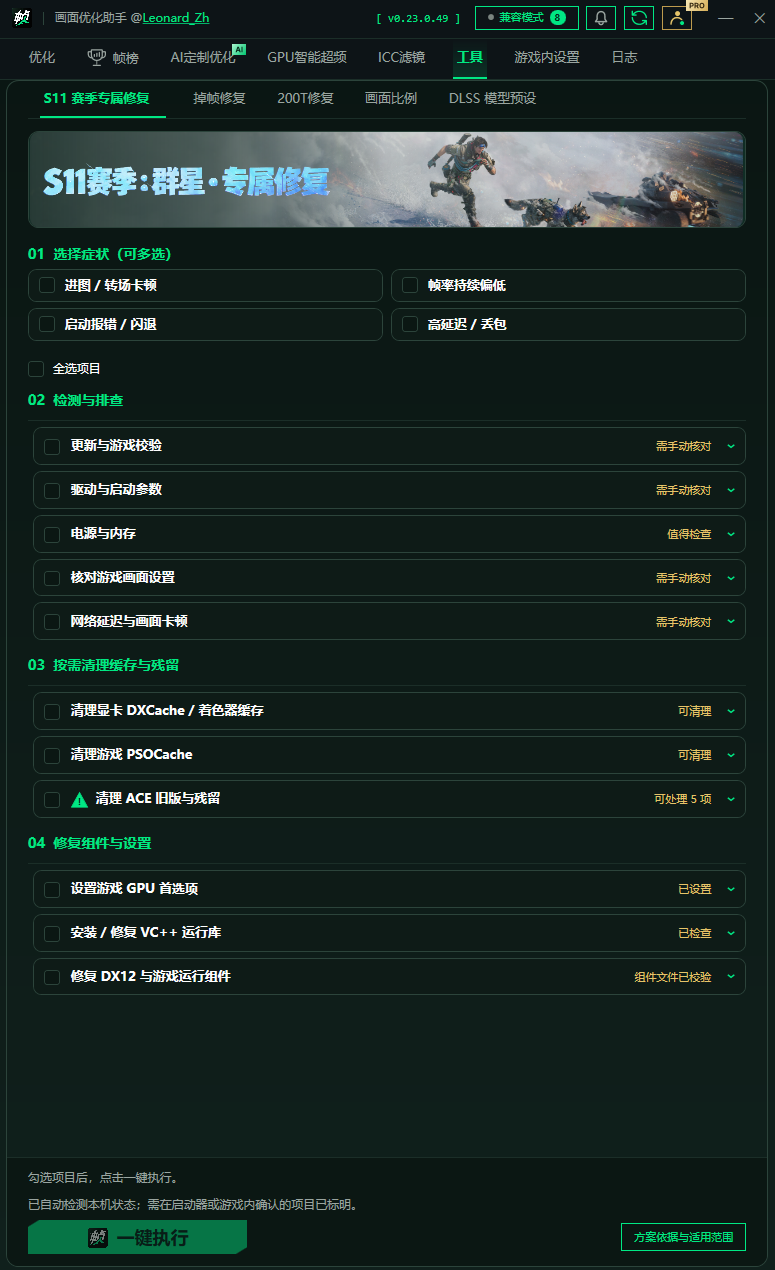
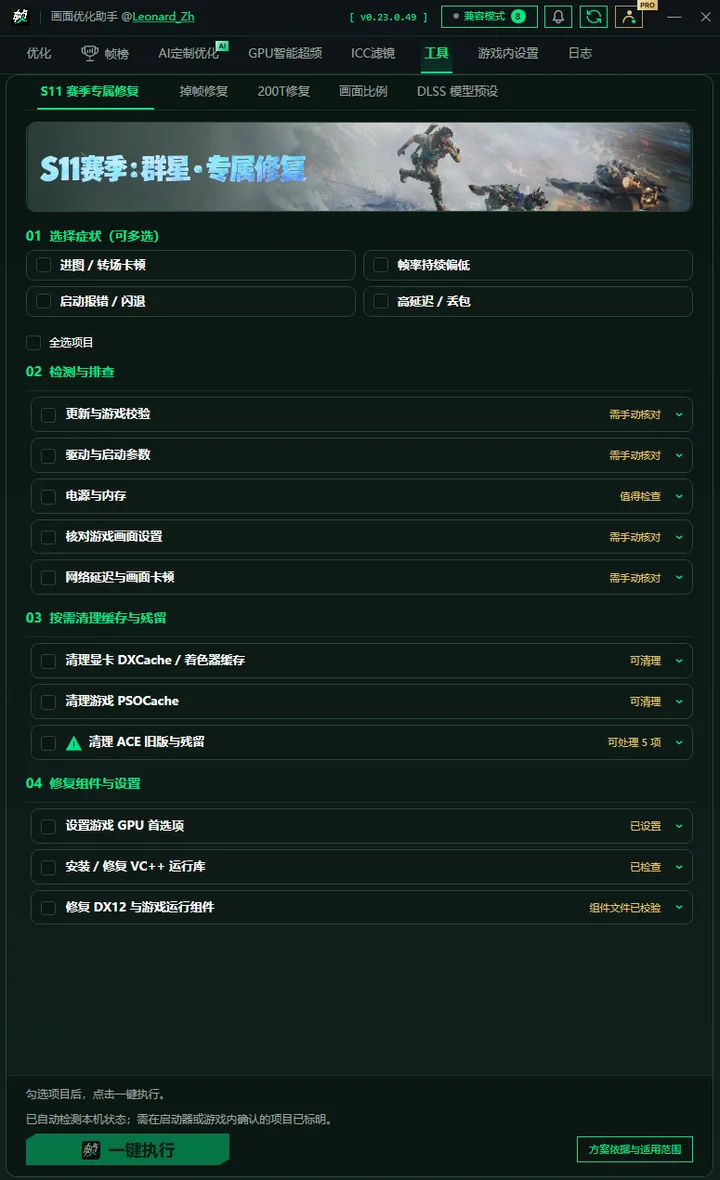
Season Repair may change game caches, rendering settings or DX12 components within the confirmed scope. It does not inject into the game process or read/write game memory.
File size and SHA256 are verified after download and again before installation. If the version switch fails, the old version is retained or restored.
Install to Program Files by default, or choose another local fixed NTFS drive. The installer creates a protected directory automatically.
How FrameBar compares
More than a list of tweaks
Dedicated Delta Force tuning, backed by Windows optimization, hardware checks and troubleshooting for gaming PCs. Every setting has a reason, every change has a result, and reversible changes have a recovery path.
| Feature | FrameBar | Wuji | GamePP |
|---|---|---|---|
| Dedicated Delta Force tuning ★ | ✓ Game-specific checks, tuning and stutter troubleshooting | ✓ | — |
| Save original values and restore per setting ★ | ✓ Restore one, several or all settings, with conflict protection | — | — |
| Game compatibility mode ★ | ✓ Defaults on when another game is first found; preserves your choice | — | — |
| An interface that makes the next step clear | ✓ Performance, hardware, tweak status and restore controls in one place | — | — |
| Three built-in presets and custom presets | ✓ Performance, Balanced, Stability and saved custom presets | ✓ | — |
| Windows and gaming tweaks | ✓ Power, scheduling, background tasks and GPU settings | ✓ | ✓ |
| Check the current state before and after tuning | ✓ Skip changes already applied; flag conditions that need attention | — | — |
| FPS / CPU / GPU / temperature monitoring | ✓ Live readings in the client | — | ✓ |
| Local history and diagnostics | ✓ Performance history, app logs and full diagnostics | — | ✓ |
| Game performance reports | ✓ Whole-session history and comparisons under similar conditions | — | ✓ |
| Purpose, potential benefits and limits explained per setting | ✓ All 35 tools explained on the website | — | — |
| No game-process injection or game-memory access | ✓ Repairs stay within the confirmed scope, with risks explained | — | — |
Scroll sideways to see the full comparison →
PRO membership · Coming soon
All 35 existing tweaks, checks, fixes and precise-restore tools remain free. Planned PRO benefits include GPU-model-specific profiles, season-specific tuning from S11 onward, one-click GPU tuning and enhanced leaderboard profiles.
Release notes
Older notes describe each release at the time it shipped. Retired features and past update requirements are not the current feature list or support policy; see the user guide and signed update manifest.
Update
- Fixed client initialization failures that prevented normal startup on some Windows systems.
Update
- Upgraded the client runtime architecture to improve startup, hardware-information loading and interface responsiveness.
- Added S11 Season Repair: choose fixes by symptom and run them together.
- Fixed several known issues.
Update
- Fixed several known issues
Update
- Fixed compatibility mode failing to open, or the game still showing an old GPU model, on some PCs after a model change.
- Fixed the app opening without loading its content, or failing to detect the GPU and memory, on some PCs.
- Fixed intermittent errors and hangs in optimization, restore, hardware checks and performance reports on some PCs.
Update
- Fixed PnP issues in compatibility mode on some PCs.
- Fixed the game continuing to use the old GPU model after a model change on some PCs.
Update
- Improved the overall user experience.
- Fixed game performance reports failing to generate for some users.
- Fixed restore failures with some older backups and improved legacy-backup compatibility.
- Fixed account-session loading, sign-in state recovery and QR-code loading after KOOK scanning.
- Fixed the GPU model being unintentionally restored when applying other tweaks or restoring settings.
- Fixed GPU model changes remaining unavailable after compatibility mode was turned off.
- Fixed the status remaining stuck on “Applying system optimizations” after an operation failed.
Update
- Fixed several known issues
Update
- Improved when game performance reports appear.
- Fixed performance reports failing to generate for some users.
- Fixed shader-cache clearing on some AMD GPUs.
- Fixed startup failures affecting the Steam edition.
Update
- Improved game performance reports.
- Made the app run more smoothly.
- Improved background-task handling.
- Improved cleanup and restore workflows.
- Improved progress messages during tuning.
- Improved KOOK community account linking.
- Fixed several known issues.
- Improved overall stability and compatibility.
New
- Added WeChat and KOOK QR-code sign-in. You can sign in directly with KOOK or link it to an existing FrameBar account.
- Added a separate game profile for the Steam edition. The mainland China and Steam editions are detected independently, with separate game paths and tweak states.
- Added input-method service diagnostics to help investigate issues such as input-method switching failures and missing candidate windows in the game.
Improved
- Reworked startup detection and background scheduling to reduce startup waits and runtime memory use, improve responsiveness and stability, and support future development.
- Added AMD-specific tuning to improve hardware compatibility, game performance and stability.
- Renamed “Game mode” to “Compatibility mode,” with the instruction: “Off for Delta Force; on for other games.”
- Reordered tweaks by pending status and expected benefit. Power-plan settings now stay together, with less reshuffling after execution.
- Streamlined hardware checks and diagnostic uploads to reduce repeated WMI, PCIe and sensor queries. Closing or cancelling now stops background work immediately.
Fixed
- Fixed GPU model spoofing being reported as successful when the written change had not actually taken effect.
- Fixed NVIDIA PCs showing “Optimization status check failed” and loading only the first item in the tweak list.
- Fixed damaged WMI repositories causing the app to reject a legitimate startup and block the main window.
- Fixed prolonged UI freezes when opening advanced compatibility settings, changing presets or rerunning detection.
- Fixed older high-impact settings disrupting global hotkeys for music, microphones and other apps while the game was in the foreground.
- Fixed some memory settings being reported as failed when they simply required a restart.
- Fixed a lock task being created even after power-plan switching failed, and optimization history incorrectly showing the version as
v0.0.0. - This was a mandatory update. v0.23.0.26 and earlier required an upgrade to continue using the app.
- Fixed leftover GPU spoofing with an empty backup interrupting compatibility-mode switching and preventing spoofing from being enabled again.
View older release notes
- Fixed game mode failing to turn off.
- This was a mandatory update.
- Improved the user experience.
- Fixed several known issues.
- This was a mandatory update.
- Introduced game compatibility mode: scan for other installed games and automatically switch to a compatible configuration when multiple games are found.
- Added advanced compatibility customization. Choose which of 25 restorable power, graphics, memory, service and scheduling settings to restore and protect, with Select All and Clear controls.
- Compatibility mode restores selected conflicting settings from existing backups. Delta Force-specific tweaks still target only Delta Force; other general tweaks continue to apply.
- Fixed missing session data when EAC protection prevented the game process path from being read.
- Fixed leftover PresentMon/ETW sessions preventing capture in the next match. Improved game-process discovery and recovery after capture errors.
- Fixed time-base changes, capture retries and live FPS reads in long sessions.
- Update prompts no longer interrupt gameplay. They appear after the game closes.
- This was a mandatory update; earlier versions were no longer supported at that release.
- Fixed missing power-plan, hidden power-setting and lock-task entries in Restore Settings.
- Power-plan restore now safely removes the lock task first, then returns to the original plan and restores hidden settings. Later changes are preserved when detected.
- This was a mandatory update.
- Fixed automatic or manual update checks incorrectly reporting the network as unreachable despite a successful server connection.
- The Leonard_Zh name in the title bar now opens the author's Douyin profile.
- This was a mandatory update.
- Reworked PCIe detection to show the current link, locally reported maximum, data source, target adapter and device location clearly.
- Added a 10-second PCIe check under load, without changing system settings, with desktop, laptop and external-GPU guidance for Normal, Retest recommended, Needs attention and Insufficient data states.
- Renamed the three built-in presets to Performance, Balanced and Stability without changing their contents or internal configuration.
- Added complete local gaming-session records and retesting support, including average FPS, 1% Low and evidence of frame-drop events.
- Added FrameBar change history with the time, app version, affected settings and applied/restored state, so manual changes are not misattributed to the app.
- Improved individual and full restore with conflict prechecks, transaction rollback, atomic restore records and cross-account recognition of machine-level changes. Corrupt backups identify the affected file.
- Fixed high-performance GPU preferences repeatedly appearing as pending and being rewritten. Restore no longer overwrites other fields in the same registry value.
- Fixed pointer-precision restore updating only the registry without immediately refreshing the active Windows session.
- Fixed the app unexpectedly exiting and its tray icon disappearing when the main window was minimized to the system tray.
- Fixed invalid old update caches blocking later in-app updates with “Access denied.”
- Improved running-process checks during an in-place install to avoid access errors, failed installation or mixed old/new files when the previous version was still running.
- Removed the light native DWM border on Windows 11 to eliminate the white strip above the main window, while keeping dragging and resizing.
- Replaced the PowerShell taskbar icon with the app's triangle logo and gave the app its own taskbar group.
- Fixed Windows or OEM Ultimate Performance plans being shown as pending even when already active.
- Fixed post-install startup failures with some redirected user folders or Windows permission policies.
- Fixed Restart Now returning Win32 203 without restarting Windows on some PCs.
- Fixed CPU temperature detection for AMD Ryzen AI/APUs.
- Fixed PCIe checks misclassifying native x8/x4 links or idle downshifts. Added NVIDIA and cross-vendor Windows PnP reads plus a 10-second check under load.
- Added guidance for persistently narrow links under load: GPU seating, primary slot, riser cables and M.2 lane sharing. The app does not change BIOS settings automatically.
- Added theme-green warning icons to the three power-plan settings and legacy fixed-pagefile restore. Experimental dynamic P-State tuning is no longer included in default presets or Select All.
- Added a separate confirmation before disabling Enhance pointer precision, explaining that the mouse may feel faster or slower.
- The title-bar close button now minimizes to the tray. Left-click the tray icon to restore the window; use its right-click menu to exit.
- Fixed several known issues.
- Fixed legacy game-process-priority restore failing with “Backup registry target is not allowlisted” and preventing the restore list from loading after upgrades from early versions.
- Legacy compatibility is limited to the original CpuPriorityClass and IoPriority tweaks for DeltaForceClient.exe. Other process names and IFEO values remain blocked by the security allowlist.
- Versions earlier than v0.23.0.8 still required an update to continue using the app.
- Retired the fixed virtual-memory tweak that could create a very large pagefile on the system drive. Disabling memory compression became manual-only and was removed from defaults, Select All and built-in presets.
- Added per-setting restore for legacy virtual memory and all registry-only tweaks, with conflict protection for later changes.
- Disabled in-app NVIDIA Profile Inspector imports that lacked a verifiable automatic backup.
- Fixed a running instance in another Windows or remote session causing a false “Already running” warning on first launch in the current session. Repeated launches now bring the existing window forward.
- Changed suggested spoof models to GTX 1050 Ti for NVIDIA laptops and GTX 750 Ti for NVIDIA desktops. AMD continued to use RX 560.
- Versions earlier than v0.23.0.8 still required an update to continue using the app.
- Fixed Restart Now doing nothing on some PCs. The app now runs the restart command directly and checks the system result.
- Logs now retain the last 10 sessions and remain available to view and copy after restarting the app.
- Full diagnostic uploads now include recent logs plus VBS and Memory Integrity status to help investigate stutter and restore problems.
- Versions earlier than v0.23.0.8 still required an update to continue using the app.
- Fixed the installer stopping with exit code 183 when PawnIO or leftover components were already present.
- Added compatibility with PawnIO 2.2.0 and 2.2.0.0, checking existing drivers, devices and DriverStore entries to avoid duplicate installation.
- An unavailable temperature-sensor driver no longer blocks the main installation. CPU temperature may be unavailable temporarily; other features remain usable.
- Versions earlier than v0.23.0.8 still required an update to continue using the app.
- In-app updates now honor server retry delays instead of failing immediately when the download server returns HTTP 429 or 503.
- Improved messages during prolonged server congestion instead of exposing low-level errors such as GetResponse or Too Many Requests.
- Improved update compatibility for older clients so they can still obtain the package when the download queue is full.
- Versions earlier than v0.23.0.8 still required an update to continue using the app.
- Added a shared risk confirmation for power-plan switching, hidden-setting tuning and power-plan locking. It appears before writes whether these are selected individually, together or through the recommended full preset.
- Added a one-time post-update notice for each user: if tuning causes stutter, unusual frame drops, black screens or game startup failures, restore the power settings and restart.
- Fixed in-app updates failing to relaunch and then rolling back on some gaming-café, public-PC and built-in Administrator setups.
- Fixed some browsers not starting the download automatically after the website queue completed.
- This was a mandatory update. Earlier versions required an upgrade to continue using the app.
- Improved Restore all to handle power settings left by older versions. When Windows restrictions prevent exact recovery, it safely falls back to Balanced instead of repeatedly failing.
- Isolated power-plan tuning so subsequent changes affect only FrameBar's dedicated plan, not user-created or OEM plans.
- Made the startup choice between personal PC and gaming-café/public PC clearer.
- Added estimated waiting times to the download queue.
- This release included critical restore fixes; earlier versions required an upgrade to continue using the app.
- Fixed several known issues.
- Added a server-managed installer-download queue. Both the website and client show how many users are ahead and start downloading automatically when a slot is available.
- Downloads resume from the last received byte after a read timeout or connection interruption instead of starting over.
- Repeated retry failures now show a clear network message instead of a low-level Read error.
- Fixed the installer rejecting all NTFS drives in some Windows or security-software environments. If a temporary staging label fails, installation continues only after rechecking the restrictive ACL.
- Bundled LibreHardwareMonitor and the signed PawnIO driver to read trusted CPU/GPU temperature sources without requiring another monitoring app.
- PawnIO may be shared by other hardware tools, so uninstalling FrameBar leaves it in place. Manage it separately in Windows Installed apps.
- Fixed repeated restore failures when the original power plan had been deleted or become invalid. Restore now falls back to Windows Balanced and records that the original plan was not recovered exactly.
- Restore all now explicitly reports “Restore incomplete” if anything fails. Successful fallback writes a restore record so repeated clicks do not rerun the operation.
- Corrected live FPS measurement to prioritize displayed frames and the main game swapchain, reducing distortion from multiple swapchains, discarded frames or stale samples.
- When no trusted CPU temperature source is available, the app now explains why instead of presenting an unreliable motherboard thermal zone as CPU temperature.
- GPU model spoofing can now be selected separately in Restore Settings to recover the real model name.
- Fixed the installer blocking reinstallation on another drive when an interrupted installation or security quarantine had left the launcher missing.
- Added repair that preserves verified incomplete installations. Failed installation or launch validation restores the prior state.
- Unverified ordinary folders remain strictly protected and are not overwritten or cleaned by the installer.
- Updated the performance dashboard: FPS and CPU/GPU/memory cards show neutral changes between records, with local history accessible from each card's upper-right corner.
- Switched CPU usage to Windows processor utility metrics to correct low readings on hybrid CPUs. CPU temperature no longer uses motherboard ACPI thermal zones.
- Moved CPU/GPU hardware and temperature cards above live-usage cards, with consistent units, accent colors and action-button styling.
- Added a graphical installer with local fixed NTFS drive selection and automatic protected-folder creation. Administrator permission is requested only after clicking Start Installation.
- Increased and remembered the main window height. Notification bodies now support 10,000 characters, with a green unread badge for new messages.
- Strengthened permission checks on update staging files to improve silent in-app update reliability.
- Added live FPS, CPU/GPU/memory usage and CPU/GPU temperatures.
- Added display names, resolution categories and refresh rates, including 1K, 2K and 4K labels.
- Increased and remembered the main window height to show hardware status and the tweak list more fully.
- Increased notification-body limits from 2,000 to 10,000 characters and added an unread count.
- Fixed the elevated engine reporting a GpuSpoofModel validation error when no spoof model was selected.
- Fixed the elevated engine incorrectly reporting that -RequestFile could not be combined with other action or business parameters at startup.
- Fixed an incorrect “Optimization request contains restore parameters” error when applying tweaks.
- Added a notification center with live alerts, unread badges and message history.
- Recent messages are cached locally so synchronized content remains readable during network outages.
- Website usage figures now briefly highlight when values change.
- Fixed several known issues.
- Fixed detection of NVIDIA, AMD and Intel control software on some PCs.
- Added a diagnostic-feedback option for black screens or black patches in parts of the game.
- Fixed invalid or incomplete performance samples being accepted as valid records.
- Added a stutter troubleshooting page with NVIDIA-, AMD- and Intel-specific steps.
- Added direct shader-cache clearing, high-performance GPU selection and Visual C++ checks, with progress feedback.
- Added individual, multiple, Select All and Restore all controls, with protection for later changes and rollback on failure.
- Select All in the Optimization page now included GPU model spoofing, still with a separate confirmation before execution.
- Added a star and shortcut to memory-speed checks, linking to BIOS guidance for the detected PC brand and platform.
- Fixed XMP, EXPO or DOCP being reported as disabled even when memory was already at its rated speed.
- Fixed Null errors when switching power plans, invalid shader-cache paths and GPU-vendor detection failures.
- Fixed incorrect permission-state detection on first launch on some PCs, improving startup and post-update usability.
- AI-tailored optimization (coming soon)
- Failed in-app updates return to the previous version: one-click updates now retain the old version until the new main window opens successfully.
- If the new version fails to start or the installer is interrupted during launch validation, the next installation restores the previous version first.
- Added issue and outcome selection before full diagnostic upload, including frame drops, stutter, overheating, FPS gains and 1% Low improvements.
- Added RTX 2050, RTX 2060 and RX 560 spoof targets. Restored AMD support with RX 560 selected by default; marked 750 Ti, 1050 Ti and RX 560 as suggested choices.
- Kept the original AMD driver-settings recommendations and added a tailored option based on GPU performance, display resolution and refresh rate, device type and memory.
- Added PC-brand detection so XMP/EXPO BIOS instructions show the appropriate entry key for the detected brand.
- Fixed the app failing to open on some PCs: a system call that read the program path did not specify Unicode, turning Chinese filenames into question marks and causing the elevated helper to exit at startup. Systems with a non-Chinese locale were affected.
- Fixed the same issue in the uninstaller.
- Fixed launcher errors masking the real cause and reporting every failure simply as “Startup failed.”
- Fixed several known issues.
- Fixed upgrades from older installations such as v0.19.x incorrectly requiring scripts that had only been introduced in the new version.
- Existing settings, saved presets and backups continue to migrate. Users affected by failed updates could install v0.20.1 directly to restore normal startup.
- Added Find the Best Configuration Beta: record three baselines, then test three low-risk tweak groups that do not require a restart using fixed rules. Evaluate average FPS, 1% Low, P99 frame time, stutter, temperature and power. Roll back only the current candidate when benefits are unclear or results regress.
- Experiments save progress and verify the game, GPU, driver, graphics settings and sample quality. Samples affected by game exit, loss of foreground focus, scene changes or settings changes are excluded. After an unexpected close, the experiment can safely resume or restore.
- Strengthened security and reliability across the app, updater, installer and backup/restore workflow: Program Files by default, critical-file hashes, protected write-ahead backups and rollback after failed transactional updates.
- Fixed detection of hybrid or multiple NVIDIA GPUs, IRQ and sample mismatches, the 1% Low calculation, MMCSS parameters, scheduled tasks, failure exit codes and corrupt performance history in diagnostics.
- Raised the minimum supported version to v0.20.0. Clients from v0.19 onward had to upgrade after detecting the update; v0.18 still received an update prompt. The website retained only the latest installer link.
- Renamed the shader-cache item to “Stutter troubleshooting: clear shader caches” to make it easier to find by symptom. Behavior was unchanged from v0.19.2.
- Prevented multiple main windows from opening. A second launch reports that the app is running without interrupting the original window's optimization or restore work.
- Expanded the GPU model spoofing section by default so its options are visible when opening the Optimization page.
- Added experimental shader-cache clearing for freezes lasting two to three seconds every ten seconds or so after entering the game. It clears DirectX and driver caches without touching the game folder. The first one or two matches may stutter more while shaders recompile. Drivers rebuild the caches; no backup or restore is needed. Off by default, with no guarantee of improvement.
- Made the read-only Visual C++ runtime check selected by default after it frequently proved relevant in community stutter investigations. It changes no settings.
- Fixed passed checks never being selected again by presets, effectively limiting them to a single initial check.
- Added four tuning-intensity categories to anonymous performance summaries—None, Light, Balanced and Deep—to compare before/after results for the same anonymous device.
- Specific selected settings, saved-preset names and preset contents are not uploaded.
- The UI, GPU guidance and diagnostics now show the real GPU model reported by the driver, unaffected by model spoofing.
- After stable game startup, capture 120 seconds of average FPS, 1% Low, GPU usage, temperature and power summaries for diagnostics.
- Added a minimum-supported-version policy requiring older versions to update before continued use.
- When GPU control software is missing, the app now directs users to the relevant vendor's official download button.
- Automatically detected updates now open their details, with a title-bar entry retained for later review.
- Added GPU model spoofing to the recommended full preset, still requiring a separate confirmation and allowing manual target selection.
- Fixed hybrid-graphics laptops using AMD/Intel integrated graphics for GPU guidance instead of prioritizing the discrete GPU.
- Added Game Ready driver selection guidance for NVIDIA laptops.
- Fixed the app exiting immediately after an update.
- Minor tweak.
- Reworked spoof defaults: GTX 750 Ti for RTX 30 series and GTX 1050 Ti for RTX 40/50 series, with manual switching available.
- Fixed the old window locking icon files during in-app updates and improved handling of duplicate windows and short-lived file locks.
- Fixed saved presets from the build machine being included in the installer. Features were unchanged from v0.16.1.
- Fixed hidden power-setting restore being incorrectly reported as failed, separating harmless skips from actual failures.
- Improved backup and restore, failure reporting and protection of backup records.
- Improved in-app updates, diagnostics and the open-source release process. Discontinued portable-package distribution.
- Corrected streamer graphics-setting mappings and improved UI interactions.
- Improved graphics-setting groups, tutorial links and installation.
- Added in-app automatic updates with file-size and SHA256 verification.
- Improved settings restore, restart reminders and desktop integration.
- Improved game-path detection, NVIDIA tuning and restore feedback.
- Rebuilt the graphical interface and improved tweak and update interactions.
- First public release of the Delta Force graphics optimization tool.
Disclaimer
The following matches the latest usage declaration shown when client v0.23.0.37 first starts. Read it in full and agree before using this tool.
Before you use FrameBar Full Disclaimer · Matches client v0.23.0.37
What this tool is
A free, independently developed tool, not affiliated with Tencent or the official Delta Force team. It is not an official product and has not been officially endorsed or authorized.
Created by Leonard_Zh · Douyin: Leonard_Zh.
It changes your PC
FrameBar modifies Windows settings, including registry values, power plans, service startup behavior and boot configuration through bcdedit. These are system-level changes.
Safeguards: before changing any restorable setting, the original value is durably saved in a write-ahead record. Backups are stored in the protected directory %ProgramData%\DeltaForceBooster\backup, with integrity checks. Use Restore Settings to revert them. Read-only checks and actions explicitly marked as non-restorable do not create these backups. Do not delete backup files: they are the basis for recovering original values.
Restore has limits: it cannot be guaranteed to succeed every time. Known limitations include system permissions, damaged backups and changes made by other software before a restore. Failures are reported explicitly, not presented as successes.
Results are not guaranteed
Tuning results depend on your hardware, Windows version and drivers. You may see a noticeable improvement, no change or a regression from particular settings. Disputed settings are identified in the app and are not selected by default.
No claim of “X more FPS” applies to every PC. Measure your own before-and-after results.
Some settings have known side effects
These are expected trade-offs, not necessarily faults. They are explained in each setting's description:
- Disabling Enhance pointer precision changes mouse feel and may take time to get used to.
- Disabling hibernation also disables Fast Startup; laptops can no longer hibernate when the lid closes.
- Disabling Windows Search makes system searches noticeably slower.
- Choosing best-performance visual effects makes the desktop look plainer.
- Holding higher GPU clocks and using Ultimate Performance can increase heat and power use and reduce laptop battery life.
- GPU model spoofing is high-risk; some users have reported lower FPS rather than gains.
Read each description before selecting it. Leave settings unchecked if you are unsure.
Power-plan compatibility risks
Switching to Ultimate Performance, tuning hidden power settings and locking the power plan all change Windows power management. Motherboards, BIOS versions, drivers and OEM power policies differ. Affected systems may experience system or game stutter, unusual frame drops, black screens or flicker, driver errors, game startup failures, increased heat, power use or fan noise, and problems with sleep, wake or peripherals.
Save your work, close the game and understand Restore Settings before continuing. Restorable changes are backed up, but neither a performance gain nor complete prevention or recovery of every issue is guaranteed. Continuing through the second confirmation indicates that you have read and understood these risks and chosen whether to apply the changes for your device.
If problems occur, first restore the power-related settings you just applied and restart. If they persist, restore Windows or your PC manufacturer's default power settings before further troubleshooting. To the extent permitted by law, issues arising from these compatibility differences are subject to the Liability section below.
Security software and Windows prompts
The project does not currently have a purchased code-signing certificate, so:
- Windows SmartScreen may show an unknown-publisher warning. Verify the source and warning before deciding whether to proceed.
- Registry and service changes may trigger security-software alerts; an alert must be assessed rather than automatically dismissed as a false positive.
A missing signing certificate is not proof of either safety or malware. If you do not trust the tool, do not use it—that is a reasonable choice.
After the standard-permission launcher verifies integrity, the app's own EngineHost.exe shows one UAC administrator prompt per launch. The main interface keeps administrator privileges for that app session, so optimization, restore and update actions do not prompt again. Installation and uninstallation have their own administrator confirmations.
The game and your account
The tool processes game PSOCache, rendering settings or DX12 components only for repairs confirmed by the user. It does not inject into the game process or read/write game memory. ACE-related actions may back up configuration and modify service records according to the confirmed plan, after prerequisite checks.
Using a third-party tool is not a guarantee of account safety. If you are concerned about your game account, do not use it.
Data and privacy
- System tuning runs locally. Network features include update checks, retrieval of official driver guidance, anonymous usage statistics and diagnostic reports you choose to upload.
- The app reads and stores necessary local data about hardware, drivers, game settings, runtime performance, applied/restored settings and diagnostic feedback.
- After you accept the notice and enter the app, anonymous session uploads, deep diagnostics, personalized-optimization data use and account history are initialized as enabled by default. Settings do not expose separate controls for these purposes. An existing explicit opt-out is not re-enabled by restart or upgrade, and damaged state does not authorize network access. Routine uploads exclude usernames, computer names, Windows SIDs, game paths, file contents, registry contents and complete raw timelines.
- Where uploads are enabled, de-identified hardware, environment, performance, apply/restore results and feedback may be used for the corresponding online purposes. Deep-diagnostic event windows may include process names and network-connection details. Local tuning, restore and performance recording do not depend on these network uses. Rights requests remain available through the privacy-policy channels; requests already sent may finish processing.
- Personalized-optimization algorithms are developed only on the server. The released client has no experiment entry point and does not automatically run personalized tests or change the system.
- Full diagnostics are sent only when you initiate an upload, review the list and confirm. Personal information is redacted where possible.
Liability
To the extent permitted by law, the author disclaims liability for direct or indirect losses resulting from use of this tool, including system problems, data loss, hardware issues and game-account issues.
Back up important data before use. If you do not accept any of these terms, close the tool and do not use it.
Selecting Agree and Continue indicates that you have read, understood and accepted the full notice.
Before downloading
- The project currently has no commercial code-signing certificate, so Windows may show “Unknown publisher.” Check the file against the published SHA256 before installation; a matching hash is not a safety certification.
- The tool changes some registry values, power plans and system services. Security software may flag it; verify warnings rather than assuming they are false positives.
- Restorable system settings save their original values before a write. Restore individual settings or all of them in Restore Settings. Read-only checks and shader-cache clearing do not create restore backups.
- After accepting the notice and entering the app, anonymous usage, deep diagnostics, personalized-optimization data use and account history are enabled by default. There are no separate purpose-specific controls in Settings; existing explicit opt-outs remain respected. Routine statistics exclude usernames, computer names, game paths, registry contents and diagnostic report bodies.
- Full diagnostics are sent only after you select the issue, review what will be sent and confirm. Diagnostic logs are not uploaded automatically in the background.
- Results vary by hardware and scenario, with no fixed FPS gain promised. Retest using the same map, graphics settings, resolution and route.